How to Translate a PDF and Keep the Original Layout in 2026
Learn how to translate a PDF and keep the formatting intact. A practical workflow covering OCR, DOCX conversion, text expansion, DTP, and layout rebuilding.
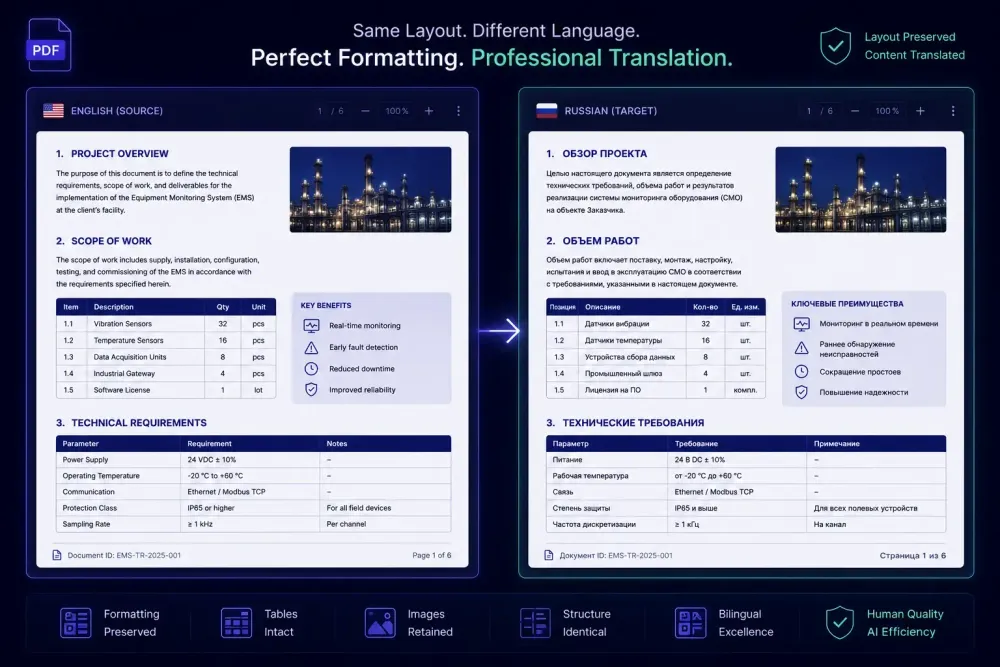
PDFs are the most common document format in professional translation, and translating a PDF while keeping the original formatting intact is one of the trickier workflows to get right. We've seen this pattern enough: the client sends a formatted report, brochure, or technical manual and the request sounds simple — same layout, different language. What follows is often a frustrating sequence of broken columns, merged paragraphs, and layout elements that shifted for no obvious reason. The tools that promise to handle this automatically get you 70% of the way there before quietly failing on the rest.
This guide covers what actually works for PDF translation with layout preservation, where common approaches break down, and how to build a workflow that holds together across different document types.
Why PDF translation is harder than it looks
PDFs are built for presentation, not editing. A DOCX stores content in structured containers — paragraph styles, table cells, heading hierarchies — that tools can parse and modify. A PDF stores content as positioned elements: text blocks, image masks, and graphical paths fixed to specific coordinates on the page. When you pull text out of a PDF for translation, you lose the relationships that made the document readable: paragraph continuity, column order, table cell membership.
That's not a design flaw in the format. It's intentional. PDFs were built to resist modification. But it means that "translate this PDF and keep the layout" requires steps that translating a DOCX doesn't.
The translation itself is usually the easy part. The hard parts are extracting clean, structured text before translation and reassembling the layout in the target language afterward — and each of those two steps has its own failure modes.
Two ways to translate a PDF and keep its layout
There are two fundamentally different approaches to PDF translation with layout preservation.
Native PDF editing extracts text from the PDF, translates it, and writes it back into the same file — leaving all the positioning and formatting in place. Tools like Adobe Acrobat Pro can do this for text-based PDFs with simple single-column layouts and standard embedded fonts. The result looks right because you're working within the existing file structure rather than rebuilding it.
The limitation is real: this works for simple documents and becomes unreliable for complex ones. Multi-column text, tables, rotated labels, and custom fonts all introduce risk. The tool starts making guesses about which text block belongs where, and on complex documents those guesses often produce output that's harder to fix than starting over.
Convert, translate, rebuild is the standard professional approach for any document where layout actually matters. The process: export the PDF to an editable format (usually DOCX), translate that editable file, then either deliver the translated DOCX or use desktop publishing software to reconstruct the layout in the target language. More steps, more control, more reliable results.
For a one-page flyer with a clean single-column layout, native editing is probably fine. For a 40-page technical manual with tables, callout boxes, and a custom grid, the convert-translate-rebuild path is the only one that produces a deliverable worth sending.
Getting a clean DOCX from a PDF
The conversion step is where most formatting gets saved or lost. There are three main routes, and the right one depends on the document.
PDF editor export. Adobe Acrobat Pro and Nitro PDF both have "Export to Word" functions that produce acceptable output for straightforward text-heavy documents. For a business report with standard margins, body text, and a few headings, the exported DOCX typically needs light cleanup: fixing split headings, merging fragmented paragraphs, and occasionally correcting list structure. This is the fastest route when the document cooperates.
OCR conversion. Scanned PDFs — documents that were physically printed and then digitized — store content as images, not text. You can't extract text directly; OCR reads the document visually and reconstructs the text. ABBYY FineReader is the industry standard for this work. On clean 300 DPI scans of Latin-script documents, modern OCR reaches very high accuracy. For degraded scans, unusual typefaces, or documents with mixed scripts, accuracy drops and the OCR output needs review before translation.
AI-based extraction. A growing number of services use vision models to read PDF pages and reconstruct document structure. For digitally generated PDFs — ones that began as a DOCX before being exported — these tools often produce cleaner output than traditional converters, preserving heading levels, paragraph styles, and table structure more reliably. For scanned documents, they're doing AI-assisted OCR with better layout reconstruction than rule-based approaches.
Once you have a clean DOCX, the translation step becomes manageable. If you're using an AI translation tool that takes DOCX as its input format, the structured source file goes in and comes back as a formatted translated DOCX with the document structure intact. SnapIntel accepts DOCX files directly, lets you define a glossary and translation prompt before the job runs, and returns a formatted delivery DOCX — useful when the document's layout needs to survive translation rather than just the text content.
Before the translation job starts, having your terminology in order makes a real difference. If the document contains domain-specific terms — product names, legal clauses, technical labels — a glossary defined upfront prevents inconsistency in the output. SnapIntel's free glossary generator can help you build one quickly from the source document if you don't have one ready.
Planning for text expansion before the layout breaks
Translated text is almost never the same length as the source. German runs roughly 30% longer than English. French and Spanish sit around 20–25%. Finnish can hit 50% expansion for technical content. Japanese and Chinese generally compress relative to English.
For documents going through DTP after translation, this means the rebuild involves reflowing text: resizing frames, adjusting font sizes, occasionally restructuring sections. Experienced DTP specialists build expansion into the project timeline before translation starts. We recommend flagging this to clients as part of the initial project briefing when the source is English and the target is anything in the Germanic or Romance family.
For native PDF editing, expansion is a harder problem. Translated text that overflows a fixed text box has nowhere to go. We've seen PDFs delivered to clients where the final sentence of every paragraph was cut because no one accounted for the German being a third longer than the English source. The client caught it during review, and fixing it meant essentially restarting the job.
The practical step: before committing to a timeline, estimate the expansion factor and ask whether the existing design has room. If a tight single-page layout needs to become German, the options are reducing font size by half a point, tightening tracking slightly, or having an upfront conversation about layout changes. None of those conversations are easier to have after the translation is done.
Tables, columns, and complex layouts
Multi-column layouts and tables are the two areas where PDF conversion fails most often.
For tables: if the PDF was generated from a DOCX or an InDesign file, table structure usually survives conversion intact. If the PDF was assembled by positioning text elements visually to look like a table — without actual table containers underneath — conversion tools may not recognize any table structure at all. The output becomes a collection of floating text fragments with no row or column relationship.
A quick test: open the converted DOCX and click inside what should be a table cell. If Tab moves you to the next cell, it's a real table. If clicking selects a floating text frame, the table was visual-only in the PDF and needs manual reconstruction before translation.
For multi-column layouts: PDF columns are typically separate text blocks placed side by side on the page. When a converter linearizes that into a DOCX, it can get the reading order wrong — outputting the right column's content before the left column finishes, or collapsing both columns into a single flow. Read the converted DOCX sequentially before handing it to a translator. A quick read-through to verify paragraph order takes a few minutes and catches structural errors that would otherwise surface halfway through a 6,000-word translation job.
For documents with significant layout complexity, keep the original PDF open alongside the DOCX during structural review. Visual comparison before translation is much faster than reconstructing correct structure from a finished translation of a broken source.
Scanned PDFs and where OCR adds risk
Scanned PDFs introduce uncertainty that text-based PDFs don't have. OCR on clean 300 DPI scans of Latin-script documents reaches accuracy rates above 99%, but even at that rate a 300-word page has two or three character errors on average. For general content those errors are usually minor. For contracts, medical records, or financial reports where a misread digit changes the document's meaning, the OCR output needs a human review pass before translation.
OCR errors concentrate in predictable places: rubber-stamped text, handwritten annotations, faded sections, stylized typefaces, and non-standard script characters. A document that OCRs cleanly overall might have specific problems in its header stamps or signature blocks — areas that a quick page-by-page comparison against the original scan would catch immediately.
For documents where accuracy has legal or financial weight, the workflow we rely on is: run OCR to get the text into editable form, then have a bilingual reviewer compare the OCR output against the original scan before the file goes to translation. Our guide on localizing PDF documents without losing formatting covers the OCR-specific steps in more detail, including how to handle mixed-language documents and handwritten content.
This doesn't apply if your accuracy requirements are lower — a general marketing brochure can tolerate a character error here or there, and the translator will often catch and fix OCR mistakes naturally during the translation process. The question is what happens if they don't.
Rebuilding the layout after translation
For complex documents that went through the convert-translate path, the final step is reconstructing the layout in the target language. This is DTP work, and it requires different tools than standard translation environments.
Adobe InDesign is the professional standard: precise control over text frames, column widths, paragraph styles, and baseline grids. For simpler documents — internal reports, user manuals, forms — Microsoft Word's layout tools are often sufficient. The process is the same in either case: open the translated DOCX, build the target-language layout using the original PDF as a design reference, flow the translated content in.
Three places where translated text predictably creates layout problems:
Text overflow happens when the translated content is longer than the available frame. The fix sequence: expand the frame if the design allows it, reduce font size by half a point if not, tighten tracking slightly as a last resort. Cutting sentences to fit is a content decision that needs client involvement, not a unilateral translation call.
Hyphenation needs to match the target language. German compound words hyphenate under different rules than English, and setting the wrong hyphenation dictionary in InDesign produces line breaks that look wrong or introduce ambiguity in technical contexts. Set the language for each paragraph style before flowing translated text.
Number and date formatting changes across locales. A document localized for German readers should use 1.000,00 rather than 1,000.00 for numbers, and dd.mm.yyyy for dates. This is easy to miss in a DTP workflow and worth a dedicated QA pass before the final PDF is generated. If you run into layout problems at this stage, our article on what to do when a document's layout breaks after translation covers recovery steps for the most common failure modes.
A practical workflow for PDF translation with layout preservation
Here's the sequence we'd use for a job where layout fidelity matters:
Assess the source document. Is it text-based or a scan? Single-column or complex multi-column structure with tables and graphics? The answers determine which conversion approach makes sense and how much cleanup time to budget.
Convert to DOCX. Use the right tool for the document type: Acrobat Pro export for straightforward text-based PDFs, ABBYY FineReader or an AI-based extraction tool for complex or scanned documents.
Review the DOCX structure before translation. Check reading order, verify that tables are real table containers rather than visual constructs, confirm heading levels. Compare against the original PDF. Fix structural problems before the translator sees the file.
Flag text expansion to the client. If the source is English and the target is a European language, estimate how much longer the translated text will be and confirm the layout can handle it before translation starts.
Translate with context in place. Whether you're using a CAT tool, an AI translation tool, or a combination, have your glossary and any domain-specific instructions ready before the job runs. Terminology defined upfront stays consistent through the translation; terminology defined after the job runs means going back to fix things.
Rebuild the layout if needed. Use the original PDF as the visual reference. For professional documents delivered as PDFs, do this in InDesign rather than Word — better control over fonts, spacing, and final rendering.
QA the final file. Check text overflow, number and date formatting, line breaks, and hyphenation. Generate the final PDF from the layout application rather than from the translated DOCX — it gives you better font rendering and output consistency.
One step worth taking before any of this: ask the client if they have the original source file. If the PDF was produced from a Word document or an InDesign file, the client may have it. Getting that source eliminates the conversion step entirely and gives you a clean, structured starting point. It's a simple question that saves significant cleanup time when the answer is yes.
This doesn't apply if the PDF is the only thing that exists — for historical documents, scanned archives, or files where the original was never retained, OCR conversion is the only path. But for corporate reports, product manuals, and marketing materials produced in the last decade, the source file often exists and often is available on request. It's worth asking.