How to localize PDF documents without losing formatting
Learn how to localize PDF documents without breaking the layout — OCR, text extraction, DOCX-first workflows, and DTP explained for translators and agencies.
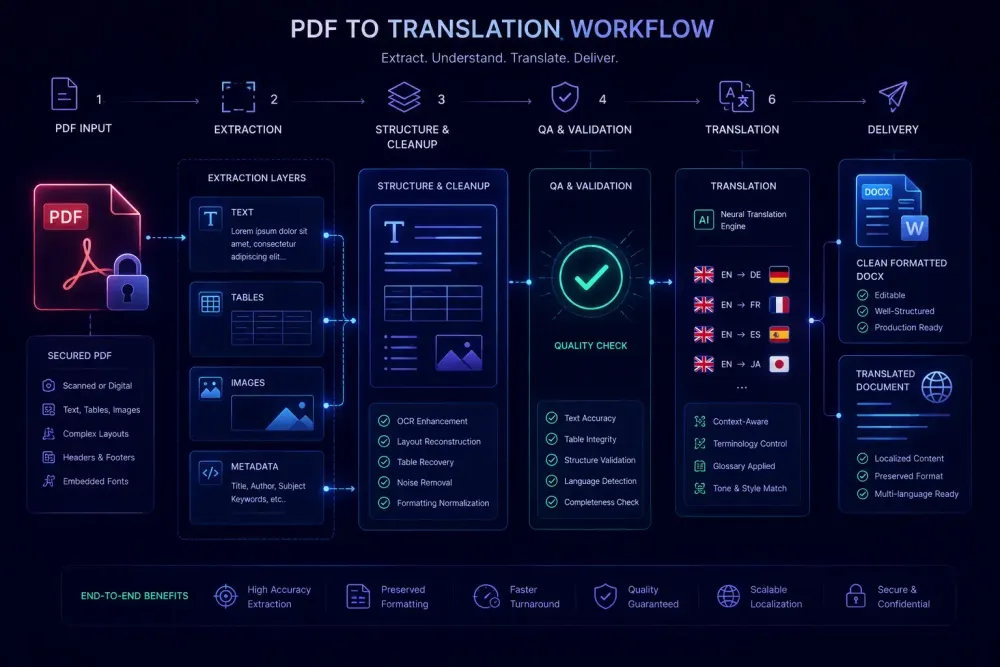
Localizing PDF documents without breaking the layout is one of those jobs that looks simple until you open the file. A client sends a finished-looking PDF and expects a translated version back in the same format. What they don't see is everything the format works against: PDFs are export artifacts, not editable source files, and getting clean translatable text out of them requires knowing exactly what kind of PDF you're dealing with and which approach to take before anything else.
Why PDFs are hard to localize
PDFs were built to solve a display problem. The goal was to make a document look identical on any device, in any operating system, regardless of the reader's installed fonts or software. To do that, PDF encodes layout at a low level — character positions, glyph metrics, vector paths — rather than storing the kind of structured paragraphs a DOCX holds.
That's the core problem for localization. When you open a PDF in Acrobat, you see readable text. But underneath, it might be stored as individual characters scattered across a coordinate grid rather than sentences or paragraphs with any logical order. Some PDFs encode text as actual text objects that tools can extract reliably. Others render text as images: scanned documents, forms with custom fonts, or InDesign exports where text was converted to outlines before the file left the designer's machine.
Even in the best case — a digital PDF with extractable text — extraction tools often return content out of sequence. Multi-column layouts are the biggest culprit: most extractors read left-to-right across the full page width and interleave content from both columns in screen order rather than reading order. Tables lose their structure. Headers end up embedded in body text. Footnotes detach from their references.
None of this makes PDF localization impossible. It makes a clear decision process essential before picking up any tool.
Digital vs. scanned: the first call to make
Before any translation tool enters the picture, establish whether the PDF is digital (created from an authoring application) or scanned (photographed or photocopied, then converted to PDF).
A digital PDF has selectable text. Open it in Acrobat and click on a word — if you can select individual characters, the text is extractable. That opens options: PDF-to-Word converters, CAT tools with PDF input support, or programmatic extraction for batch work.
A scanned PDF contains images, not text. The words are visible on screen but stored as pixels. Before translation can begin, OCR has to convert those images into characters. Accuracy depends on scan quality, font clarity, and how structured the original document was.
Scanned files from older administrative or legal sources are the most time-consuming to deal with. Scan quality is often inconsistent, fonts vary within the same document, and the OCR output needs real cleanup before it's ready for translation. This is worth stating clearly at scoping: scanned PDFs carry additional effort, and that should show in the project price. Clients who haven't worked through this before often assume OCR is automatic and instant. It isn't — and framing that upfront prevents friction at delivery.
OCR: what it handles and where it breaks
Modern OCR has improved considerably. ABBYY FineReader, Adobe Acrobat's built-in recognition, and open-source Tesseract all handle clean single-column text reasonably well. For straightforward content, error rates are low and the output is mostly workable.
The failures are predictable. Multi-column layouts cause the most trouble: extractors read across the full page width, so a two-column document produces sentences from column A mixed with sentences from column B in screen order. Segmenting that back into readable paragraphs requires manual work after the fact, and in a long document — say, a 40-page report in two columns — that cleanup can eat hours.
Tables are another consistent weak point. Cell separators drop, rows merge, and numbers migrate between columns. For financial statements or regulatory documents where numeric accuracy matters, you need to check every value against the source. You cannot assume the OCR output preserved the table structure.
Non-standard fonts fail more often. Decorative, script, or condensed typefaces produce higher error rates and make post-OCR proofreading mandatory rather than optional. The same applies to documents with colored backgrounds, low contrast, or handwritten annotations — any of these reduce accuracy in ways that compound across a long file.
One practical threshold we've landed on: if error rates exceed roughly 15–20% per page, re-entering the text manually is often faster than correcting OCR output line by line. That's an uncomfortable conversation to have with a client who expected a quick turnaround, but it's often the honest one.
Ask for the source file first
If a client sends a PDF that was exported from Word, InDesign, or any other authoring application, the simplest path is to ask for the source file. This step gets skipped more often than it should, particularly when agencies receive large batches and move quickly through intake.
A PDF exported from a DOCX can almost always be localized more cleanly from the DOCX directly. DOCX preserves paragraph structure, heading levels, table boundaries, and text flow — everything PDF strips out during export. When the source is available, the workflow becomes: translate the DOCX, re-export to PDF. The client gets a properly formatted document; you avoid the extraction problem entirely.
This doesn't apply when the PDF came from layout software the client no longer has, or when the source file was lost. In those situations, you're working from the PDF and need to decide between conversion and direct editing.
We've seen agencies develop a simple intake habit: every time a PDF comes in, the first message back to the client is "Do you have the source file?" The yes/no answer determines the next two hours of work. It takes ten seconds to ask and regularly saves far more than that.
How to localize PDF documents by converting to DOCX
PDF-to-DOCX conversion tools — Adobe Acrobat's converter, Nitro, Smallpdf, iLovePDF — produce very different results depending on the source PDF's structure.
For simple, single-column digital PDFs, conversion works well. You get a DOCX with readable paragraphs, mostly correct heading levels, and manageable formatting artifacts. From there, you translate using your normal workflow, then export back to PDF for delivery.
For complex layouts — multi-column content, InDesign-style exports, documents with floating text boxes and embedded graphics — conversion produces messy output. Text boxes appear in wrong positions. Tables collapse into a single column. Font styling disappears. Cleaning this up typically costs more time than a different approach would have.
The practical test is simple: convert the PDF, open the resulting DOCX, and scroll through the first three or four pages. If the formatting is consistently broken right from the start — text in wrong order, tables collapsed, heading levels scrambled — the cleanup cost will outweigh the benefit of persisting with this method. At that point, route the file to DTP or go back and ask for the source.
When you do get a clean DOCX from conversion, you can translate it through any standard workflow. If you need AI translation with structured preparation before post-editing — glossary context, domain analysis, and a QA report alongside the output — SnapIntel handles DOCX import and returns a translated DOCX with QA artifacts ready for final formatting and PDF export.
This works best when the converted DOCX is clean and the content is relatively linear. It doesn't fit highly styled layout documents or forms where the visual structure carries as much meaning as the text.
When DTP tools are the right choice
Some PDF localization projects genuinely require desktop publishing software. This applies when the source was created in InDesign, when the client needs exact layout matching down to text placement and column widths, or when conversion has clearly failed and you're effectively rebuilding the document anyway.
Working in Adobe InDesign or Affinity Publisher gives full control over typography, text flow, and export quality. The typical workflow: extract or re-enter the source text, translate it externally, import the translated content back into the layout file, and adjust text boxes to handle expansion or contraction.
Text expansion is the main mechanical challenge. English to German or Russian typically adds 20–30% to text volume. A text box sized to fit the English content may overflow with the translation — sometimes by a lot. For marketing brochures, annual reports, and product datasheets where precise visual design is part of the deliverable, that layout adjustment is unavoidable. You can't just let text overflow and call it done.
This is also where domain knowledge matters in a practical way. Technical manuals and regulatory submissions often have strict formatting requirements where even minor layout changes are unacceptable to the client or the regulatory body reviewing the document. Agencies handling these document types regularly benefit from having someone with real DTP experience in-house — not as a backup option, but as part of the standard team.
QA checks for localized PDF files
Once the translated PDF is assembled, it needs a QA pass that goes beyond linguistic review. PDF localization introduces failure modes that don't appear in standard DOCX or XLSX workflows.
Start with text completeness. Confirm that no segments were dropped during extraction, OCR, or conversion. Text inside image objects, near page borders, or embedded in headers gets missed more often than you'd expect. A word count comparison between source and target gives a rough signal — not conclusive, but a quick sanity check before you go further.
Review visual formatting at full size. Open the translated PDF at 100% zoom and scroll through page by page. Not in thumbnail view, not at 50%. Look for text that overflows its container, gets clipped at page edges, or shows inconsistent font sizing between adjacent paragraphs. These problems routinely don't appear in reduced zoom or in proofreading mode.
Spot-check numbers and dates carefully. If OCR was part of the pipeline, numeric values are where errors concentrate. A 6 read as 0, a period misread as a comma in a currency figure, a date with a missing digit — in legal or financial documents, none of those are minor. Build specific number-checking into your QA checklist rather than leaving it to the general review pass.
Check hyphenation and line breaks. Some PDF assembly tools introduce breaks that don't match the source document's conventions. This is more visible in languages where line-break and hyphenation rules differ significantly from English, and it affects readability in ways that clients notice even if they can't articulate exactly what's wrong.
For QA approaches that carry across translation workflows more broadly — including how structured preparation and AI output review connect — the AI translation tools guide covers some of the same principles applied to different document types.
Getting the process right
PDF localization is slower and more technically involved than translating DOCX or XLSX files, and that difficulty is invisible to clients. A polished PDF looks like it should be easy to translate. Setting accurate expectations at scoping — is this file scanned or digital, is the source available, does the layout require DTP — prevents the hard conversations at delivery.
The decision process most agencies land on after enough PDF projects: ask for the source file first, every time. If the PDF is digital and the layout is relatively simple, run a PDF-to-DOCX conversion and evaluate the first few pages before committing to that path. If conversion fails or the layout is complex, route it to DTP. For scanned files, assess OCR quality before finalizing the price and be direct with clients about what the process actually involves — including the possibility of manual re-entry for particularly bad scans.
No tool makes PDF localization as clean as working from a DOCX source. But a consistent intake and decision process, applied from the first moment a PDF lands in your inbox, keeps the work predictable and the results deliverable without surprises.