What to do when a document's layout breaks after translation
Document layout translation failures are predictable. Learn the causes, how to prevent them in source files, and how to fix them systematically after translation.
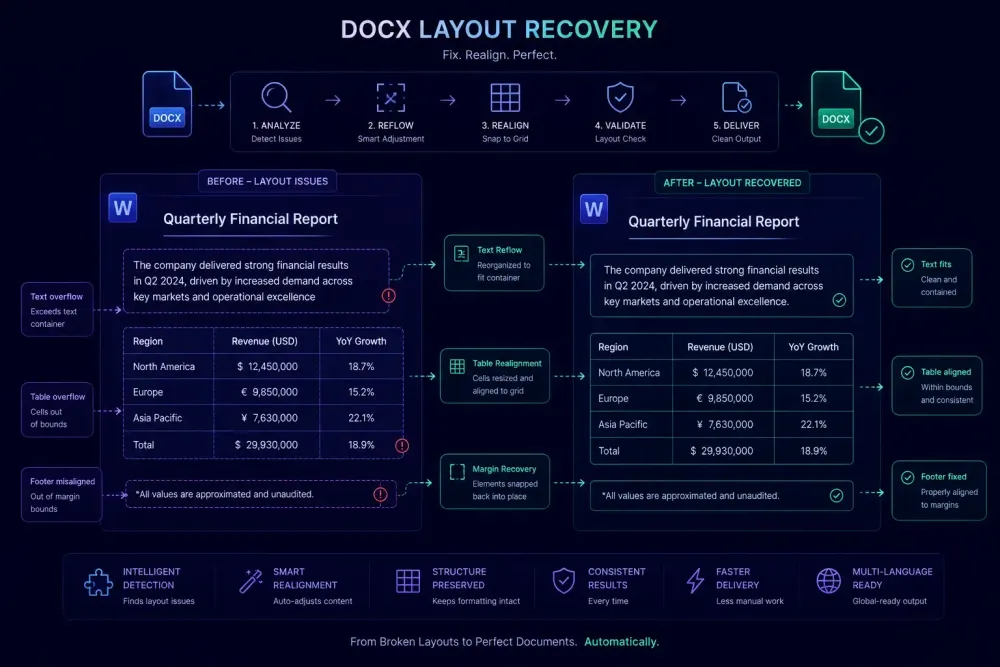
You hand off a translated DOCX. Terminology correct, segments complete, word count matched. Then you open the file in print preview and the tables are stretched, a text box is cutting off three sentences, and the company logo is sitting over a paragraph it was never supposed to touch. Document layout translation failures are predictable enough that most experienced translators keep a mental checklist for them. They're also common enough that broken layouts still reach clients regularly. Most failures have specific causes, and most can be fixed in under an hour once you know where to look.
Why document layout breaks when you translate
Microsoft Word treats text and layout as loosely coupled. A paragraph has a width constraint. A text box has a position and a height. A table cell has a minimum size. These constraints were designed for one language and one approximate text volume. When translation changes that volume, Word doesn't always adapt cleanly.
Text expansion is the most common structural cause. European languages translating from English typically expand 15 to 30 percent. German, French, and Polish are reliably longer. A two-line English heading can become three lines in German, which shifts everything below it: anchored images, section dividers, and page breaks.
Font substitution is less obvious but produces some of the strangest-looking results. When the target language requires a character set the original font doesn't support (Cyrillic, Arabic, CJK), Word substitutes the nearest available font. Different fonts have different metrics at the same point size. A Russian translation can appear cramped; a Thai one can seem to float.
Anchor drift gets missed most often. Images, callout boxes, and decorative dividers are anchored either to a page position or to a specific paragraph. When text above the anchor shifts because of expansion, paragraph-anchored objects move with it. An illustration that sat cleanly beside paragraph seven can end up in the middle of paragraph ten after translation adds a page of content above it.
The fourth cause is hardcoded spacing: fixed-height cells, pixel-positioned text boxes, or Exactly line spacing set instead of At least. One extra translated line compresses into a fixed container or disappears entirely. This one is sneaky because the text is technically still there — it's just invisible.
Knowing which cause applies to a specific problem tells you whether the fix belongs in source preparation, translation setup, or post-translation cleanup.
The most common layout failures in translated DOCX files
Problems that reach clients tend to cluster around a few types. Recognizing them on sight is half the fix.
Overflowing table cells are the most frequent. Cells with a fixed row height clip content when the translated text is longer than the original. Word sometimes hides the overflow silently, which means a translator doing a segment-level QA pass can miss it entirely. The client opens the document and sees two lines in a row where there should be four.
Misplaced images are a close second. Images using inline positioning shift predictably with text flow and usually survive translation intact. Images set to Square, Tight, or Through wrapping with a paragraph anchor move based on where that anchor paragraph now sits. In a contract that grew by half a page after translation, the company letterhead can end up on page two.
Broken text boxes appear most often in marketing materials, product sheets, and documents with heavy visual design. Text boxes typically have fixed dimensions with autofit disabled. When translated content exceeds the box capacity, Word clips the text without warning. Nobody notices until someone opens it in print preview.
Stretched or wrapped headers and footers appear when right-aligned elements (dates, page numbers, company names) collide with a left-aligned translated string that runs longer than the original.
Disappeared section titles come from Exactly line spacing. The title text is still in the file's XML; it renders as a blank line because the fixed line height can't accommodate the translated glyphs.
How text expansion creates spacing and overflow problems
Text expansion is worth its own section because it sits behind most of the document layout translation problems we encounter.
Expansion rates vary by language pair. French and Italian typically expand 15 to 20 percent from English. German and Polish tend toward 25 to 35 percent. Finnish and Hungarian can reach 40 to 50 percent for some content types. The proportional effect is worst on short strings: table headers, callout titles, button labels. A six-word English heading that becomes ten words in German creates a two-line heading where there was one. That one extra line can push a page break to the wrong position, shift an anchored image, or overflow a cell that had exactly the right height in the source.
In running body text, the effect accumulates gradually. One extra line per section, two per chapter. In constrained containers, even small expansion causes failures. A cell designed for two bullet points may need three in French. A three-column table that fit its content in English may have two columns wrapping in Polish.
The failure isn't always visual. In reports, specifications, and compliance documents, page position matters. A translated document where content has shifted by three-quarters of a page may be technically accurate but useless if the client's internal referencing system is keyed to specific page numbers.
Automated QA tools catch segment completeness, terminology mismatches, and number errors. They won't catch a table cell silently clipping two lines or an image that has drifted to the wrong page. That gap is why layout review needs to be a named step in the delivery process, not an assumption folded into general QA.
Protecting document layout before translation starts
The most efficient place to fix document layout translation problems is before the job starts. Source document preparation takes minutes. Post-translation cleanup for a badly structured file can take hours.
Set table cells to auto-height. In Word: right-click the table, open Table Properties, go to the Row tab, uncheck "Specify height." Rows then grow with content rather than clip or overflow. Thirty seconds per table, eliminates the most common failure.
Set text boxes to autofit. Right-click the text box, choose Format Shape, go to the Text Box section, select "Resize shape to fit text." Fixed-height text boxes with "Do not autofit" selected are the second most common source of invisible truncation in translated documents.
Change Exactly line spacing to At least for body text and heading styles. At least lets the line height grow when glyphs require it; Exactly doesn't. Apply this by editing styles directly or by running a Find and Replace scoped to paragraph formatting.
Check image anchoring for any image near a page boundary or adjacent to a text box. Images that should hold a fixed design position need to be anchored to the page, not to a paragraph. Turn off "Move object with text" for those elements.
For high-expansion language pairs, estimate expansion upfront. Translating into German or Polish means containers near-full in English will likely overflow. Identify and address them before translation starts, not after receiving the output.
This preparation step is harder when the source arrives as a locked PDF or a scanned document reconstructed into DOCX. Those require more extensive post-translation adjustment and a direct conversation with the client about what the format allows.
Fixing layout problems in a translated document
When a translated DOCX arrives with layout issues, a systematic pass is faster than fixing problems in the order you encounter them.
Start with a full print preview scroll before touching anything. This shows overflow, misplaced objects, and broken page breaks in one view. Note every visible problem (location and type) before starting any fixes.
Address text boxes and table cells first. Enable autofit on each text box or adjust container dimensions manually. Release fixed-height row constraints on each table. These two steps handle the majority of visible failures.
For floated objects that have drifted, decide whether each should follow the surrounding text or hold a fixed position. Illustration captions and inline figures should move with the text. Logos, decorative elements, and sidebars with a fixed design position should be re-anchored to the page rather than to a paragraph.
Check headers and footers on each document section separately. Section breaks can reset header content, and translated text of different lengths creates unexpected wrapping. Go through each section in Print Layout view.
Verify page breaks for any document where page numbering matters: specifications, contracts, regulatory documents. A translated document that shifts content by three-quarters of a page may need manual page break adjustments to preserve referencing logic.
One approach we see translators use with AI-translated output: reviewing the delivered DOCX alongside the QA report before doing layout cleanup. The QA report surfaces segment-level issues separately, which lets you keep layout review and content review as distinct steps. Tools like SnapIntel return both a translated DOCX and a QA artifact with each completed project, which makes this split-review approach practical.
Don't reduce font sizes to make content fit. It creates visual inconsistency and looks wrong in print. Adjust containers, not text.
When the source document is the real problem
Not every layout failure originates in translation. Some source documents are structurally fragile and only worked in the original language because the content happened to fit.
This is common in documents assembled over time: a contract that grew from a template, a technical manual compiled from multiple contributor files, a report copied from a previous quarter with content swapped in. These documents often contain inconsistent styles, mixed manual formatting, and layout elements that were forced to fit through one-off adjustments that only held for one language's text volume.
Two indicators that the source is the root cause: layout issues appear in the same locations across all target languages regardless of expansion rate, and the broken elements are in manually formatted text boxes or frames that sit outside the document's main style sheet. If French, Spanish, and German all show broken table cells in the same three rows, those cells were already too small in the source.
When this is the case, flag it clearly. Delivering the translated version with a note that certain failures originate in the source document's structure is a normal part of professional delivery. What creates problems is delivering the file without saying anything.
The conversation is easier with documentation. A screenshot of the source document showing the near-overflowing cell alongside the translated version where it fails is faster to process than a written explanation. Clients who provided a badly structured source file are usually receptive when the evidence is visible.
Building layout review into your delivery checklist
A delivery checklist that includes layout review doesn't need to be long. The checks that matter are specific and take a few minutes.
Run a print preview pass before any other review step. This catches overflowing containers, misplaced objects, and broken page breaks in one scan — problems that segment-level QA will never surface.
Do a text box audit: turn on paragraph marks (Ctrl+Shift+8) and scan each text box for clipped content. Boxes that appear complete on screen can still clip in print.
Check table cell heights: every content-bearing cell should be on auto-height. Fixed-height rows are a delivery risk in any translated document.
Confirm floating image positions: each should be where it was designed to be relative to surrounding text.
For specifications, legal documents, and compliance materials, do a page break logic check: verify that no critical content has shifted across a boundary in a way that would confuse a reader or break a page reference.
For teams working regularly into specific language pairs, build language-specific notes into the checklist. The failure patterns in a German DOCX differ from those in a French one. Naming those differences saves time because whoever does the layout review knows where to look first, rather than scanning the whole document.
When AI translation produces both a translated DOCX and a QA report together, you can split layout review and content review into separate parallel checks rather than running them as a combined pass. Our overview of how AI translation tools are changing professional translation workflows covers more on structuring that kind of workflow.
Your action plan
Prepare source documents before translation: release fixed-height cells and text boxes, switch Exactly line spacing to At least, confirm image anchoring near page boundaries. After translation, run a full print preview pass before anything else. Add layout review as a named item in your delivery checklist with specific checks for text boxes, table cells, floating images, and page breaks. For high-expansion language pairs, note the specific failure patterns in your project setup so the next run of the same document type takes less time.
Most document layout translation problems take minutes to fix once you know the cause. The ones that take hours are the ones nobody checked before the client opened the file.