What is a CAT tool? A beginner's guide to computer-assisted translation
What is a CAT tool? This beginner's guide explains translation memory, segments, and glossaries — and what to look for when choosing your first one.
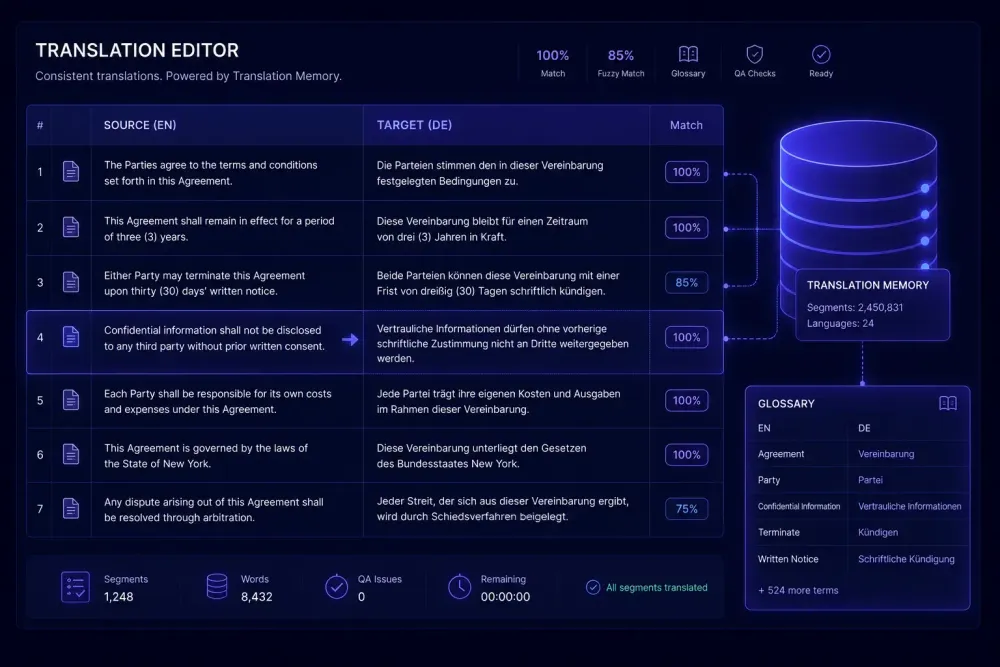
If you've spent any time in translation communities, you've probably seen the term "CAT tool" used as though everyone already knows what it means. It gets mentioned in job listings, invoices, and style guides — and rarely explained. We've talked to enough early-career translators and project managers who were embarrassed to ask that we decided to write the answer we wish existed.
What is a CAT tool? The short version: it's software that helps human translators work faster and more consistently, by breaking documents into small pieces, storing your translation decisions in a database, and surfacing previous translations when similar text comes up again. The longer version is worth reading if you plan to actually use one.
What a CAT tool actually does
CAT stands for Computer-Assisted Translation. The name is accurate: the computer assists, the human translates. A CAT tool doesn't generate target text on its own. That's machine translation (MT), a different category of tool with a different job.
When you open a source document in a CAT tool, the software breaks it into segments — typically one sentence per row. You see the source text on the left and type your translation on the right. Each confirmed translation is stored in a Translation Memory (TM), a database attached to your account or project. If the same sentence (or something close to it) appears again — in the same file or in a future project — the tool retrieves your earlier translation and offers it as a suggestion.
The most widely used CAT tools in professional translation today include Trados Studio, memoQ, Phrase (formerly Memsource), Smartcat, and OmegaT. They have different interfaces, licensing models, and features, but they share the same foundation: segment editor plus translation memory plus glossary. Learn how these three components interact and you understand every CAT tool at the conceptual level, regardless of which interface you're looking at.
One more thing CAT tools are not: Translation Management Systems. A TMS handles project assignment, vendor coordination, quoting, and invoicing. A CAT tool handles the actual translation work at the segment level. Some platforms bundle both, which adds to the confusion, but the distinction matters when you're evaluating what you actually need. We covered where exactly the line falls in CAT tool vs translation management system.
The three components your CAT tool is built on
Every CAT tool is a version of the same three-part system: segments, translation memory, and glossary. Getting these straight before you touch the software makes the learning curve considerably shorter.
Segments are the units of work. When you import a document, the tool applies segmentation rules based on punctuation and paragraph structure to split the text into pieces. Each sentence typically becomes one row. You translate one row at a time, confirm it, and move to the next.
Segmentation quality depends heavily on source document quality. A cleanly written document with proper punctuation produces clean, predictable segments. A document with run-on sentences, inconsistent formatting, or text fragmented across table cells produces segments that are harder to work with and less reusable in future projects. We've seen translators spend more time correcting segmentation issues than translating — usually because no one reviewed the source file before import.
Translation Memory is where your confirmed translations live. Every segment you confirm gets written to the attached TM. The next time a matching segment appears, the tool shows you the stored translation and its match score. A 100% (exact) match is a character-for-character repeat of a stored segment. Fuzzy matches, typically in the 75–99% range, are similar but not identical. Most agencies apply discounts to fuzzy matches on client invoices and translator rates because the editing effort is lower than a fresh translation — the actual savings depend on how much the segment has changed.
The glossary is a controlled term list for a specific client or domain. If your client insists that one particular UI element is called "Dashboard" and never "Overview," that's a glossary entry. When the tool detects the source term in a segment, it flags it and shows the approved target term. The translator still accepts or types it — the glossary doesn't translate anything — but it makes terminology errors visible before they reach the client rather than after.
How translation memory match savings actually work
The business case for TMs is clearest when you run the numbers on a real update project.
Say you've translated a 5,000-word technical manual. Six months later, the client releases an updated version. Most sections are unchanged; some are lightly revised; a few are new. When you import the update into your CAT tool against the original TM, the match analysis might show:
- 1,100 words at 100% (exact matches) — accepted automatically in most workflows
- 900 words at 90–99% — light editing, a few minutes per 100 words
- 600 words at 75–89% — moderate editing
- 2,400 words at no match — fresh translation
Roughly 36% of the document is handled with no new translation work. The fuzzy-match segments still need review, but take less time than a first translation. If you're billing per word and the client applies a standard fuzzy-match discount grid, your effective hourly rate on that project is often better than on a fresh job, because you're spending less time per segment.
The math breaks down when the TM has accumulated errors. A mistake confirmed during the first project comes back as a 100% match in the update, and you accept it without noticing because it looks identical to what you stored. Large, long-running TMs can carry errors for years. TM cleanup — reviewing and correcting stored segments periodically — is maintenance work that agencies often skip until the problem becomes visible through client feedback. If you want to go deeper on how match rates translate into actual project economics, we covered it in how to maximize translation memory leverage and reduce project costs.
What you'll see the first time you open a CAT tool
The first screen in any major CAT tool is a project creation dialog. You name the project, set the language pair, upload your source file, and attach a TM and glossary — or create empty ones if you're starting fresh. Then the translation editor opens.
The editor layout is always some version of two columns: source on the left, your translation on the right. Each row is one segment. You click into the right column for a row and start typing. If the TM has a match, it appears in a panel below the editor, usually color-coded by percentage: green for high matches, yellow for fuzzies. You insert it with a keyboard shortcut, edit what needs editing, and confirm with a keystroke.
When all segments are done, you export the result. The tool reassembles the translated segments back into the original file structure. A DOCX file stays a DOCX file. An XLSX stays an XLSX. Formatting is preserved because the CAT tool works with the document's internal structure, not its visual presentation.
This reassembly is clean for well-formatted files. Older documents with deeply nested tables, complex headers, or text inside text boxes sometimes don't reconstruct perfectly, and manual cleanup after export is occasionally needed. This isn't a CAT tool limitation exactly — it reflects the complexity of the source format — but it's worth knowing before you promise a client a formatted delivery from a fifteen-year-old PDF.
Where a CAT tool ends and where AI translation fits in
A CAT tool is a structured editor and memory system. It doesn't write translations. That's where MT and AI translation tools come in.
Most professional translators using a CAT tool today are doing some form of MTPE — machine translation post-editing. An MT engine fills in a draft target text, and the translator reviews, edits, and confirms it. The CAT tool handles the segment structure, TM matching, and glossary enforcement. The MT engine handles the first pass. The human ensures accuracy and fluency.
This works well for content types that suit MT: technical documentation, software UI strings, repetitive internal reports, templated contracts. It works less well for marketing copy, brand-heavy content, or anything where register and cultural nuance matter as much as accuracy.
If you need to translate a DOCX or XLSX file outside a full CAT project workflow, there's an alternative route. Tools like SnapIntel run AI translation as a standalone document workflow: you upload a file, set up a glossary and translation prompt before the job starts, run the translation, and download a translated DOCX plus a neutral source/target spreadsheet you can import into your TM in Trados, memoQ, or whichever CAT tool you already use. It doesn't replace learning a CAT tool for ongoing client work, but it covers the gap for one-off documents or projects where setting up a full CAT environment isn't worth the overhead.
Which CAT tool to start with
For someone learning CAT tools for the first time, there are two straightforward recommendations.
OmegaT is free, open-source, and runs on Windows, Mac, and Linux. The interface is utilitarian rather than polished, but the core functions — segmentation, TM, glossary, TMX import/export — are all there. If your goal is to understand how CAT tools work without spending money before you're sure you need one, OmegaT is the right place to start. The concepts you learn there transfer directly to every commercial tool you'll encounter later. The keyboard shortcuts change. The mental model doesn't.
Smartcat has a free browser-based tier with a CAT editor, TM, and glossary — no download required. The interface is more modern, the collaboration features are useful if you work with reviewers or want a second set of eyes on your output, and it's widely used enough in agencies that getting familiar with it has practical value beyond personal practice. The editor shows source and target segments side by side with TM suggestions in a lower panel.
Enterprise tools — Trados Studio, memoQ, Phrase — are worth learning when a client workflow requires them or when your volume justifies the cost. Starting there before you understand the basics adds interface complexity on top of conceptual complexity. That combination is how people give up on CAT tools in the first few weeks and go back to translating directly in Word.
There's one thing we'd push back on if you've been told you need to master a specific tool before taking certain clients: the gap between tools is smaller than it sounds. A translator who understands TM matching, glossary flags, and confirmed segments can navigate a new CAT tool interface in a day or two. That foundation is what takes time to build, and you build it by doing real work in any CAT environment.
Getting started without overthinking it
The most reliable way to stop finding CAT tools intimidating is to spend an hour in one before reading any more about them.
Download OmegaT or open a free Smartcat account. Take a short document you're already comfortable with — content you know well enough that you'd catch errors in the translation. Create a new project around it. Don't worry about getting the TM setup right or importing existing glossary files. Just import the file, translate ten to fifteen segments, confirm them, and export the result.
That one pass through the basic loop — import, segment, translate, confirm, export — does more to demystify the software than any amount of reading. You'll see exactly what segmentation looks like in practice, understand why the two-column layout exists, and get a feel for the confirm/move-forward rhythm that makes the tool either click or frustrating. Follow-up questions (how do I attach a TM from a previous project? how do I share a glossary with a colleague?) become much easier to answer once you've seen the core workflow complete end to end.
If the first session produces a mess — clipped segments, reassembly issues, formatting that looks wrong in the exported file — that's the source document telling you something. CAT tools surface source quality problems that manual translation hides. That's not a flaw in the tool; it's actually useful information for the next project you take on.