How to Translate Scanned PDF Documents: OCR AI and Workflow Best Practices
How to translate scanned PDF documents without garbled text or broken tables: a practical OCR, cleanup, and AI translation workflow that holds up.
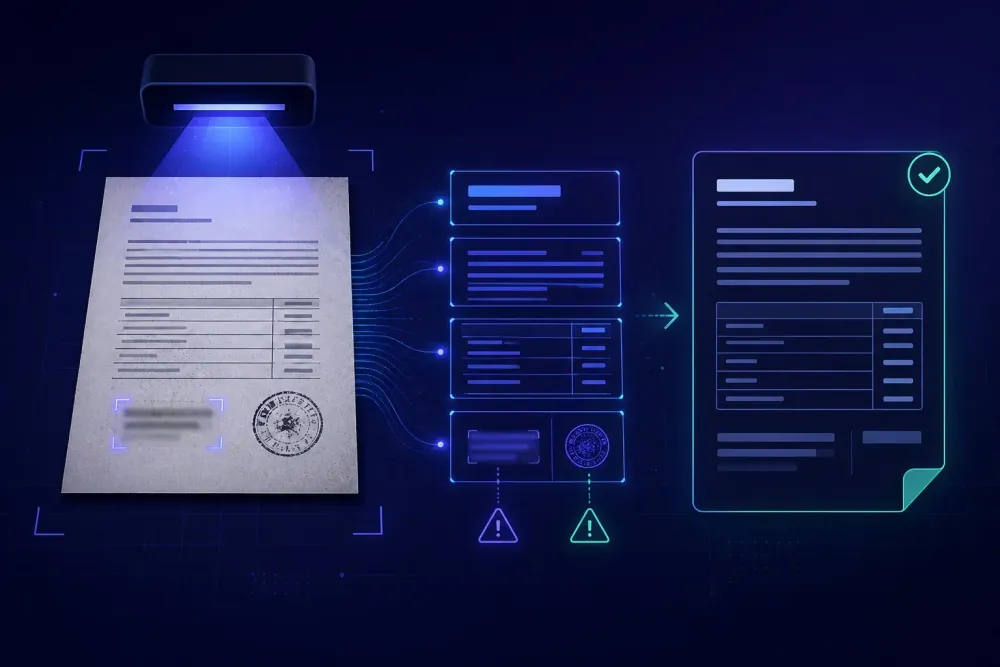
A client sends a 40-page supplier manual as a PDF. You open it, try to select a paragraph, and the cursor slides across the page like it's a photograph. Because it is one. Someone put a printed binder through an office scanner, saved the result, and now you have to translate scanned PDF documents that contain no text at all, only pixels arranged in the shape of words. We see this every week from industrial, legal and HR clients, and the jobs that go wrong nearly always go wrong at the same point: the OCR step, which most people treat as a formality rather than as the stage that decides everything after it.
Why you can't translate scanned PDF documents directly
A PDF is a container, not a format. Two files with the same extension can be completely different things. A born-digital PDF exported from Word carries a real text layer, and you can select, copy and count words in it. A scanned PDF is a stack of images with a page frame around them. Nothing in it is text until something makes text out of it.
The nastiest version is the hybrid. A contract drafted in Word, printed, signed, scanned, and then merged with two born-digital annexes gives you a file where pages 1 to 6 are images and pages 7 to 14 are real text. Word counts come back wrong, extraction half works, and nobody notices until delivery.
Worse still is a scanned PDF that already has a text layer baked in by the scanner's own software. It looks like a normal document. It is selectable. And it is often wrong in quiet ways. We once handled a scanned payment schedule where the copier's built-in recognition had turned most instances of the digit 1 into a lowercase l. Every tool downstream accepted that layer without complaint, because there was nothing to complain about: the characters were valid, they just weren't the ones on the paper.
Check before you quote. Open the file, try to select a line of body text on three or four different pages, and look at what lands in your clipboard. If the file has a text layer, copy a paragraph containing numbers into a plain-text editor and read it against the image. Any translation tool that advertises PDF support is running recognition internally anyway. The difference is whether you get to see and correct that step, or whether it happens somewhere you can't reach.
OCR quality sets the ceiling for everything downstream
Translation output cannot be better than the text that went in. This sounds obvious and is routinely ignored, because bad recognition doesn't produce obviously broken translations. It produces fluent ones that say the wrong thing.
The failure modes repeat. Two-column layouts interleave, so line one of the left column is followed by line one of the right column, and you end up with sentences that never existed in the source. Table cells merge, so a value from the tolerance column lands in the dimension column. Superscripts flatten, and m³ becomes m3 or m*. Decimal separators drift, which matters enormously when the document is a bill of materials or a lab result. Stamps and signatures printed over body text confuse the character shapes underneath them.
Reading order is the one that costs the most. We worked on a scanned safety data sheet laid out in three narrow columns with a boxed hazard panel across the top. The recognition pass produced a single stream that jumped between columns mid-sentence. The AI translation that followed was grammatical, confident, and describing a chemical that doesn't exist. Nobody reviewing only the target text would have caught it, because the target text read perfectly well.
That's the practical argument for treating extraction as a separate, inspected stage. When the source is a clean DOCX you can skim the translation and trust it. When the source came out of a scanner, the reviewer has to compare against the image, at least for anything numeric or safety-related. Budget for that, or you're pricing a job you can't actually deliver.
Prepare the scan, then pick an OCR approach
Fix the image first
Half of the OCR problems people blame on the engine are really problems with the image. The cheapest fix in this whole workflow is asking the client whether they still have the original file. A surprising number of scanned PDFs started life as a DOCX that somebody printed for a signature. One email has saved us four hours more times than we can count.
When there is no original, look hard at what you were given. Resolution below roughly 300 DPI is where accuracy starts falling off for normal body text, and small print or subscripts need more. If the client scanned at 150 DPI to keep the file small, ask for a rescan before you do anything else. It's a five-minute request that removes an afternoon of cleanup.
Then deal with the mechanical damage. Skewed pages, where the paper sat crooked on the glass, throw off line detection; deskewing is a one-click operation in most PDF and imaging tools and it changes results noticeably. Black borders and binder-hole shadows get read as characters. Two-up scans, where two book pages share one image, need splitting, or the engine treats the spread as a single wide page. Speckle from dirty scanner glass turns into stray punctuation.
Colour matters too. Converting to greyscale usually helps. Converting straight to pure black and white can destroy faint text, especially on carbon-copy forms and thermal-printed labels.
One limit worth stating plainly: none of this rescues a genuinely bad scan. A photograph of a page taken at an angle on someone's phone, in bad light, is not a document. Say so early rather than absorbing the cost yourself.
Then pick the engine
Three families of tools do this work, and they fail differently.
Dedicated recognition engines such as ABBYY FineReader or the open-source Tesseract are still the strongest option for clean printed material. They handle zone and table detection, they let you correct the recognised layout before export, and they behave predictably. Their weakness is configuration: you have to tell them the source language, and pages that mix two scripts, a Kazakh form with Russian annotations for instance, will degrade unless you set that up deliberately.
Office and PDF built-ins sit at the other end. Acrobat's recognition and Word's "open a PDF" conversion are fine for a single-column memo and unreliable for anything with a table. They also give you almost no control over the result.
Vision-capable AI models are the newer option, and they're genuinely good at the cases that break classic engines: low contrast, handwriting, marginal notes, unusual layouts. The catch is structural. These models generate text rather than read it, so when they meet a blurred serial number they produce a plausible serial number. A classic engine tends to output garbage you can spot. A generative model outputs something that looks right. Never accept a vision-model reading of a number, code or name without checking it against the image.
What works in practice is a two-pass approach. Run the dedicated engine across the whole document, review its output page by page, then send only the pages it mangled to a vision model and verify those specific pages against the scan. You spend your checking time where the risk actually sits.
Clean the extracted text before you translate anything
Recognition output is never delivery-ready, and the cleanup you do here determines how the rest of the project behaves.
Start with line breaks. Scanned pages carry a hard return at the end of every visual line, so one sentence arrives as four fragments. This wrecks segmentation: your CAT tool creates four segments where there should be one, fuzzy matches against your TM stop working, and any AI translation step receives a quarter of a sentence as its full context. Removing those breaks while keeping the real paragraph boundaries is the single most useful cleanup action in the whole workflow.
Then hyphenation. Printed text hyphenates across line ends, and recognition preserves both halves plus the hyphen. Left alone, you get words that no dictionary, glossary or terminology check will ever match.
After that, the character-level errors. Zero and capital O, one and lowercase l, five and S, eight and B. These are harmless in prose and dangerous in part numbers, article codes, ISO references and dosages. Searching for letters sitting inside otherwise numeric strings surfaces most of them in a few minutes.
Watch for structural noise as well. Running headers and footers get pulled into the body text and reappear every page or two in the middle of a sentence. Page numbers land inline. Ligatures come through as odd character combinations. And in spreadsheets rebuilt from scans, currency symbols and units often separate from their values, so 1 250 EUR arrives as two cells that later get translated independently of each other.
The general principle is that anything you fix here is fixed once, in one language. Anything you leave gets translated, reviewed, corrected in the target, and then found again in the next update of the same document. We went into this upstream effect in more detail in how source text quality affects AI translation output.
Get out of PDF and into a working format
PDF is a delivery format. It's a poor working format and an actively hostile translation format. Once the text is clean, rebuild the document as DOCX, or as XLSX when the content is really a register, price list or parts table wearing a PDF costume.
Settle the deliverable question with the client before you start, because two very different jobs hide behind "translate this PDF". One is a translated Word file carrying the same content and a reasonable approximation of the structure. The other is a PDF that matches the original page for page, same fonts, same line breaks, same figure placement. The second is desktop publishing work, it takes real time, and it should be quoted separately. Our walkthrough on translating a PDF and keeping the original layout covers where that effort actually goes.
For the rebuild itself, two routes work. Export from your recognition tool straight to DOCX and clean up the result, which suits long, text-heavy documents. Or rebuild the structure by hand in Word and paste the corrected text into it, which is often faster for a six-page certificate or a heavily formatted form where automatic conversion produces a mess of overlapping text boxes.
Whichever route you take, build tables as real Word tables. Recognition tools frequently emit tabs, spaces or absolutely positioned text boxes that look like a table on screen and behave like confetti in every tool downstream.
Once you have a clean DOCX or XLSX, ordinary document translation tooling applies again. That's the file SnapIntel takes: it accepts DOCX, XLSX and PPTX, segments the document, has you set and approve a glossary and translation prompt before anything runs, and returns a formatted translated file along with a neutral source/target XLSX you can import into any CAT tool, plus a QA report. It doesn't read PDFs, which is exactly why the recognition and cleanup work above has to happen first, in a stage you control.
What AI translation fixes and what it can't
AI handles the translation stage of this workflow well. Given clean input, a document-level model produces fluent target text, holds terminology consistently across a long manual when you give it a glossary, and keeps register steady in a way segment-by-segment machine translation historically did not.
What it cannot do is know what the paper said. If recognition read 1O0 mm, the model translates 1O0 mm, or silently normalises it into something tidier. If a column bled into its neighbour, the model produces a coherent sentence out of the merger. Generative systems are built to produce plausible output, and plausibility is precisely the wrong instinct when the input is corrupted.
Build the glossary from the corrected source text rather than from a generic domain list. On a scanned technical manual, the terms that matter are usually the ones printed in diagram labels and the parts table, and those are also the ones recognition is most likely to have damaged. Extracting terminology after cleanup gives you a second look at the highest-risk strings in the document.
Set expectations on the parts no automated path covers. Handwritten annotations, marginal notes, signature blocks, illegible stamps and anything struck through by hand need a person looking at the image. For sworn, certified and notarised work this isn't a preference: the translator attests to the source document, and passages that genuinely cannot be read have to be marked as illegible rather than reconstructed from context. A model asked to translate a blurry stamp will produce a confident, entirely invented authority name.
This approach works best on clean printed originals with a predictable layout. It works much less well on multi-generation photocopies, forms filled in by hand, and archival material, where the honest answer is that most of the effort will be human transcription and the AI stage is a small part of the job.
What to check before you deliver
Numbers first. Pull every date, amount, quantity, tolerance, dosage, article code and reference number in the translated document and check it against the scan, not against the recognised text. The recognised text is the thing you're testing. On a long document, spot-check systematically rather than exhaustively: all figures in tables, all numbers in the first and last three pages, and every number that appears only once.
Then look for gaps. Untranslated content is common in this workflow, because recognition sometimes drops a text block entirely, especially inside images, callouts and rotated labels. Compare page counts and rough text volume between source and target, and skim the scan for any block of text you don't recognise from the translation.
Check that tables survived as tables, that headers and footers sit where they belong rather than mid-paragraph, and that units and symbols reattached to their values.
Finally, send the client a short note listing anything you couldn't read: page number, location, what you did about it. Clients almost never mind being told that the stamp on page 12 was illegible. They mind finding out later that somebody guessed.
The workflow in short: confirm whether the PDF has a real text layer and whether that layer can be trusted; ask for the original file before doing anything else; fix the image, then recognise, then inspect the recognition page by page; clean line breaks, hyphenation and digit-letter confusions in the source; rebuild as DOCX or XLSX with real tables; build the glossary from the corrected text; translate; verify every number against the image; and hand over an illegibility list with the delivery. The step people skip is the third one, and it's the one that decides whether the rest of the work was worth doing.