Bluente vs DeepL for document translation: which handles formatting better
Bluente vs DeepL document translation compared on DOCX, PPTX and XLSX: what each accepts, where layout really breaks, and how to test both yourself.
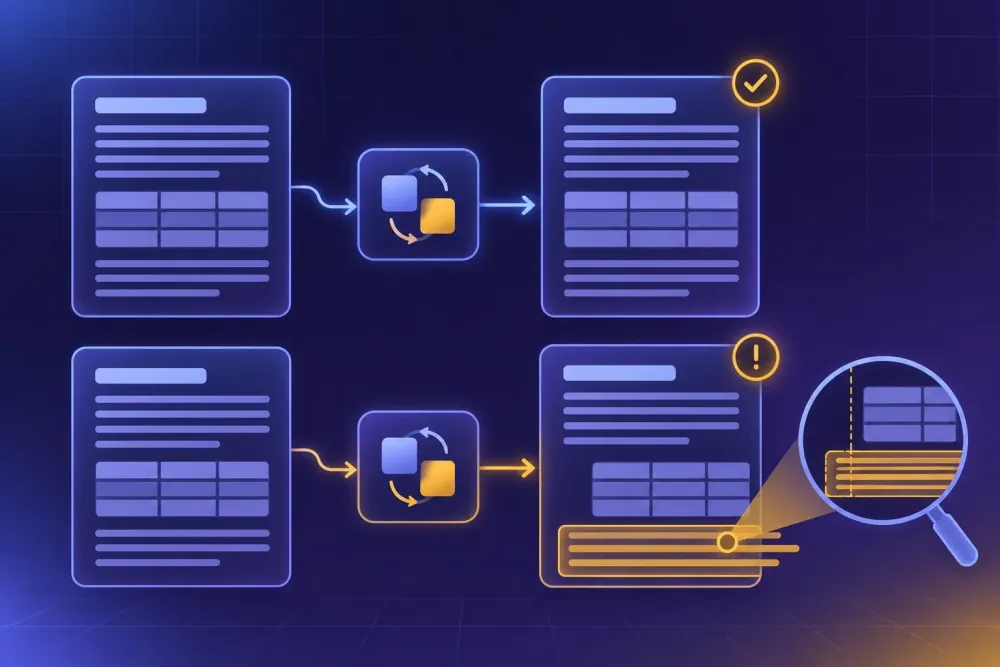
Every document translation tool on the market says it preserves your formatting. Bluente vs DeepL document translation is a useful pair to look at closely, because both make that promise in unusually strong terms, and both are telling the truth in a narrow sense. Bluente's homepage advertises "100% Formatting retention". DeepL says it "preserves the formatting and layout of original designs". We have pushed enough DOCX, XLSX and PPTX files through enough engines to know that neither sentence answers the question you actually have, which is this: which parts of my files will come back wrong, and how many minutes will I spend putting them right?
Bluente vs DeepL document translation: what each tool accepts and claims
Start with the boring part, because it decides more outcomes than the engine does.
DeepL's document translation page lists PDFs (both scanned and digitally created), Word documents, PowerPoint slides, Excel spreadsheets, HTML, SRT and TXT, with a link to a longer format list. The limits are tied to the plan rather than the format. As of November 2026 its pricing page shows a maximum file size of 5 MB on the free version, 30 MB on Individual and Team, and 100 MB on Business and Enterprise, with monthly file translations of 1, 3, 20 and 100 per user respectively. We went through those ceilings in more detail in our DeepL document translation review, and they have not loosened since.
Bluente's numbers work differently. Its homepage claims "120+ languages, 22 file types" and the upload widget accepts files up to 100 MB regardless of plan. The format lists are where it gets interesting. The homepage names PPTX, PPT and ODP for presentations, PDF, DOCX, DOC, TXT and RTF for documents, XLSX, XLS, CSV and ODS for spreadsheets, and PNG, JPG, JPEG and TIFF for images. The individual use-case pages list a shorter set, then add XML, JSON, TXT and CSV in their FAQs. Neither list reaches 22, and the two lists disagree with each other.
That inconsistency is not a scandal, but it is a signal. When a vendor's own pages cannot agree on which formats are supported, treat the marketing number as a directional claim and test the three formats you actually send. One firm fact on the Bluente side: scanned PDFs and images go through OCR, which DeepL also offers for PDFs. Both describe the output as a file you download in the original format.
Where DOCX layout actually breaks
Nobody loses a Word document to the engine. They lose it to the parts of DOCX that are not text.
A Word file carries fields, and fields are where translated documents fall apart quietly. An automatic table of contents. A cross-reference that reads "see Section 4.2". A numbered list driven by a style rather than typed digits, a footnote marker, a caption tied to a figure number. These are instructions, not strings. If the tool flattens them to static text, the document looks perfect on download and then drifts the first time somebody edits it, because the numbering no longer updates.
We watched this cost an agency most of an afternoon on an 80-page tender response. The translated DOCX came back visually identical. Three days later the client inserted two clauses into section 3, every section after it renumbered itself, and the forty-odd cross-references still pointed at the old numbers because they were no longer fields. The formatting had been preserved. The document's behaviour had not.
On this specific question Bluente's pages are more forthcoming than DeepL's. Bluente names tables, charts, footnotes, numbering and styles as things its "layout-aware engine" preserves, and says tracked edits, insertions and comments survive, which it pitches at cross-border M&A work. DeepL makes the broad claim about formatting and layout but does not enumerate. Neither vendor states what happens to field codes, so neither claim can be checked without a test file.
Two other DOCX habits worth knowing. Direct formatting applied on top of a style tends to survive better than the style itself, which is backwards from what you want. And text inside a grouped drawing or a SmartArt object is often skipped entirely, which reads as an accurate translation with a stubborn English diagram sitting in the middle of it. If the layout does come back damaged, our notes on what to do when a document's layout breaks after translation cover the repair order.
PPTX is the harder test, and neither tool fixes text expansion
Slides punish both tools for the same reason, and it has nothing to do with translation quality.
Take a 60-slide onboarding deck from English into German. German runs longer, often by a fifth to a third on short UI-style strings. Every text box on those slides was sized by a designer around the English. The translation arrives correct, placed in the right box, in the right font, and the last two lines of half the bullet blocks sit outside the shape or shrink to eight points because autofit kicked in. We have seen a deck come back where "formatting preserved" was accurate in every technical sense and the file still was not presentable.
No document translation tool resolves this, and we would be suspicious of one that claimed to. Fixing it means editorial decisions: cut the sentence, split the bullet, resize the box, change the layout. That is a human call about what the slide is for.
What you can compare is everything else PPTX carries. Speaker notes, which some tools translate and some ignore. Charts, where the data labels and axis titles live in a different part of the file from the slide text. Tables inside slides. Grouped shapes. Text baked into a picture, which no engine can put back into the picture; Bluente's OCR path reads text out of images, but nothing on its pages says the translation is re-embedded into the image. Bluente claims charts and layout come back untouched, while DeepL describes recreating visual context, which is the vaguer of the two statements.
This comparison works best as a judgement call on your real decks. A deck that is mostly bulleted text in standard placeholders will come out of either tool in usable shape. A deck built from grouped vector diagrams with labels will not, from either one.
XLSX, where the two sets of claims diverge most
Spreadsheets are where we would spend most of a test budget, because this is where the two vendors separate.
One Bluente page, the free format-preserving tool page, says in its FAQ that cell alignments, merged cells and formulas in spreadsheets are kept. That is the only place on the site making the spreadsheet-specific claim, and no testing method is described. DeepL lists XLSX as a supported format and says nothing about spreadsheets specifically. So one vendor claims more and one claims less, and the gap between those positions is exactly where real damage happens.
The failures we see most often in translated workbooks are structural rather than linguistic. A column of product codes formatted as text, where values like "1-2024" get coerced into dates on write, which silently renumbers a catalogue. Data validation dropdowns still pointing at a source range whose contents were translated, so the dropdown now offers values that no longer match the cells. Cell comments, which are text and should be translated, left in the source language. Hidden sheets, sometimes translated and sometimes not, with no indication either way. Column widths that were right for the source and are now too narrow, so the cell shows ##### instead of a number. Sheet names, which Excel caps at 31 characters, quietly truncated when the translation runs longer.
The case that sticks with us: a 4,000-row product catalogue in which one column of codes was converted to dates. The translation itself was clean. The workbook was unusable, and nobody noticed until a distributor queried an order three weeks later. A single formatting-level coercion, applied consistently, did more damage than a mistranslation would have. That is the argument for checking a workbook's structure before you check its language.
Pricing units change which one is cheaper for you
The two tools do not just price differently, they price in different units, and the unit decides who wins.
DeepL sells per-user subscriptions with a monthly file-translation count. On the November 2026 pricing page, listed in euros for Germany, Individual is €7.49 per user per month billed annually with three file translations a month, Team is €24.99 with twenty, and Business is €49.99 with a hundred and a 100 MB file cap. Characters are metered too: 50,000 a month on the free version, 300,000 on Individual, a million per user on Team, unlimited on Business under fair use. Prices vary by region and currency, so check your own.
Bluente prices by the page rather than the word, says there are no per-seat charges and unlimited users on every plan, offers five free pages to start, and mentions volume discounts beginning at 1,000 pages a month. The per-page rate is not published on the pages we read, which means we cannot build an honest cost comparison and will not pretend otherwise.
What we can say is which unit hurts whom. A file-translation count punishes anyone who handles many small documents. Twenty files a month sounds generous until a single client sends a batch of eighteen two-page certificates on a Tuesday. Page pricing punishes dense pages, and a page is a strange unit for a spreadsheet, where one sheet can be two screens or two thousand rows. Per-seat pricing scales worst for agencies: a dozen project managers who each need occasional access cost twelve seats on a subscription model and nothing extra on Bluente's stated terms. If your volume is lumpy and your headcount is larger than your usage, the page model is probably cheaper. If you run steady volume through two or three people, the subscription probably is.
Glossaries, review output, and what you get back
Terminology control is where a formatting comparison turns into a workflow comparison.
DeepL's glossary limits are tied to the plan, and they are tight at the bottom. Five entries per language pair and one glossary on the free version and on Individual, 1,000 entries and five glossaries on Team, unlimited on Business under a fair usage note, across what it describes as 100+ language combinations. Its documentation says glossaries, translation memory and style rules in the Customization Hub apply to translated files. One caveat we hit while checking: DeepL's glossary page refers to a glossary generator available on "Advanced or Ultimate" plans, and those plan names no longer appear on the pricing page, so the documentation lags the product. Verify against the plan you are buying, not the feature page.
Bluente says a custom glossary applies automatically and describes terminology lock-in for regulated language, with no entry limits stated anywhere. Translation memory is not mentioned on any Bluente page we read, which matters if you expect reuse across repeat jobs for the same client. For review, Bluente offers a bilingual side-by-side output aligned page for page, which is genuinely useful for a reviewer with no CAT tool, though page-level alignment is not segment-level alignment and will not import into one.
Neither tool, on the evidence of its own pages, hands you a segment-aligned bilingual file you can push into Trados, memoQ or Phrase. If that matters to your pipeline, better to know it before the trial than after. We built SnapIntel around that gap: it takes DOCX, XLSX and PPTX, has you review and approve the glossary and the translation prompt before translation starts, and returns the translated document together with a QA report and a neutral source and target XLSX export you can move into any CAT tool. You can see how that works at snapintel.io.
How to test both on your own files in 20 minutes
Build one three-page DOCX, one five-slide PPTX and one two-sheet XLSX out of your own real content, and then keep them forever. Both tools give you enough free usage to run this.
The DOCX needs an automatic table of contents, a numbered list driven by a style, one cross-reference, one footnote, a table with merged header cells, and one grouped diagram with a label in it. The PPTX needs a slide with a chart carrying axis titles and data labels, a slide with a table, speaker notes on at least one slide, and one text box filled right to its edge in the source language. The XLSX needs a column of codes that look like dates, a formula referencing another sheet, a data validation dropdown, a cell comment, a merged header, and a sheet name over 25 characters.
Run all three through both tools, then check seven things in the output: do the table of contents and cross-references still update when you press F9, is the numbering still automatic, did the chart labels and speaker notes get translated, did any code column change type, does the dropdown still validate, did a sheet name truncate, and how many text boxes now overflow. Write the answers in a table and keep it next to the files.
The whole exercise takes twenty minutes and it ages well. Re-run it against both tools every six months, because engines change quietly and marketing pages change faster than behaviour does. A vendor's claim about formatting is a starting hypothesis. Your own test file is the only evidence that settles it.