DeepL document translation review: file types, limits, and when you need more
A DeepL document translation review focused on files: what DOCX, XLSX, PPTX and PDF really come back as, the limits that bite, and when you need more.
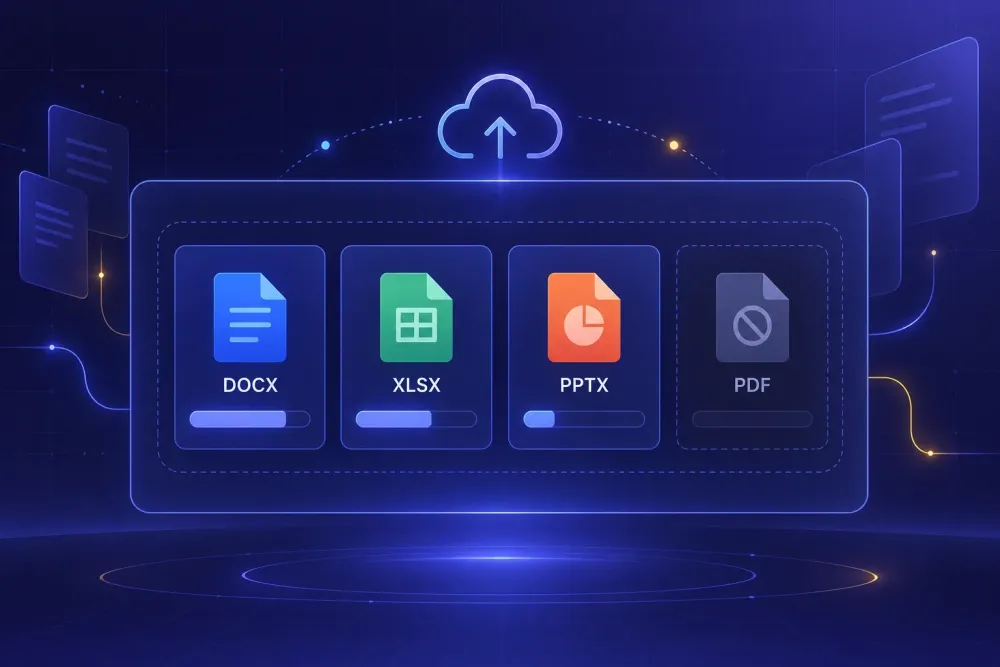
Most of what gets published as a DeepL document translation review tests the engine and then stops. Quality on a paragraph of marketing copy, a side-by-side against Google Translate, a verdict. That tells you very little about what happens when you drop a 90-slide deck or a supplier price list into the upload box, which is where the actual work happens and where almost every complaint we hear comes from. The translation quality is rarely the problem. The file is.
We talk to translators and agencies who use DeepL every day and keep using it, and their complaints follow a pattern. A format behaved differently than expected. A limit was hit without a warning. Something in the file came back in the source language and nobody noticed until review. This review is about that side of the tool: what it accepts, what it does to each format, and the point where you need something else.
What this DeepL document translation review is actually testing
Engine quality and document handling are two different products that happen to live behind the same upload button. Engine quality is what DeepL is famous for, and for European pairs it has been competitive for years. Document handling is a separate pipeline: it has to open your file, decide which text is translatable, send that text through the engine, and write the result back into the original structure without wrecking it.
The second part is where the surprises live, and it is almost never what gets reviewed. We have watched a project manager pick DeepL on engine quality, run a month of client files through it, and then spend that saved time fixing things the engine never touched: a chart title in Russian sitting on an otherwise English slide, a table of contents pointing at headings that no longer exist, a price column that lost its arithmetic.
What makes this frustrating is that DeepL documents almost all of it. The file formats page lists limits per format and per plan. The Excel article says outright that formulas are not carried over. The PDF article says the conversion runs on optical character recognition and warns about scan quality. None of it is hidden. It is just spread across a help centre that nobody reads before uploading, and the upload box does not ask you whether you read it.
So the useful version of this review is not "is the output good." It is: for the file sitting on your desk right now, what will come back, and what will you have to check?
The supported file types, and what each one does to your document
The formats that matter for most document work are DOCX and DOC, PPTX, XLSX, and PDF. Beyond those, DeepL takes XLIFF, XML, DITA, JSON, IDML and MIF, with a longer beta list that includes XLSM, ODT, RTF, Markdown, VTT, YAML, Java properties, .strings, RESX and SCORM zips.
Two things about that list catch people out. First, Excel support is not on every plan. DeepL's own help article names Pro Advanced, Ultimate, Team, Business and the API tiers. If you are on a lower plan and your client sends workbooks, that is a hard stop rather than a quality question. Second, XLSX means XLSX. XLS will not go through, and XLSM sits in beta, which matters if your client's registers are old files that nobody has ever resaved.
The per-format behaviour is where you have to pay attention. In Excel, DeepL translates cell text, the file name, sheet names, chart titles, notes and comments, and it translates hidden columns, rows and sheets along with everything else. Formulas do not survive: DeepL's Excel article says only the result of the formula will be visible in the translation. You also cannot exclude parts of a workbook from translation.
That combination produced one of the clearer failures we have seen. An agency ran a client's product catalogue, about 4,000 rows with a margin column computed from cost and list price, through Excel file translation. The text came back fine. The margin column came back as static numbers. The client updated two cost figures the following week, watched the margins not move, and assumed the translation vendor had broken the file. Nobody had checked the formula bar, because the visible values looked right.
In DOCX and XLSX, text inside an image is not translated and the original image comes back untouched. On a slide deck full of exported diagrams, that is most of the words on the page.
Where the size and character limits bite
Limits vary by format and by plan, and the ranges are wide enough to matter. Office formats run roughly 5 MB to 100 MB depending on the plan. Excel sits lower, around 10 MB to 30 MB. TXT is capped at 1 MB on most plans, HTML at 5 MB, SRT subtitles at 150 KB to 200 KB, and JSON at 1 MB regardless of what you pay. There are character ceilings too: around a million characters on paid plans, lower on free tiers.
The phrasing in DeepL's troubleshooting article is the part to read twice. If a file exceeds the supported limits, it may not be fully translated. Not rejected. Not flagged. Partially translated, and handed back to you looking like a finished file. On a 200-page manual, the difference between "this failed" and "this quietly stopped at page 160" is the difference between a ten-minute reupload and a client reading untranslated safety warnings.
The other limit that trips up real documents is tracked changes. DeepL says the translation of a DOCX file might fail if the file contains too many suggestions. Files that come back from a client's legal team are exactly the files most likely to be stuffed with comments and unresolved revisions, and that is a failure you cannot diagnose from the error message. Accepting or rejecting changes and stripping comments before upload fixes it, but only if you know to do it.
Password protection is a flat no, and so are PDFs exported from CAD, floor plans being the example DeepL gives. Custom fonts and large embedded images degrade output quality rather than stopping the job, which is the worse outcome, because degraded quality is something you have to notice.
This all works out fine on ordinary files. A 30-page DOCX report with no tracked changes and no embedded diagrams will go through without drama. The limits only become a workflow problem when your inputs are inconsistent, which for agency work they usually are.
PDF is where most of the disappointment lives
PDF translation is the feature people expect the most from and should expect the least from, and DeepL is reasonably honest about why.
The conversion runs on optical character recognition. DeepL's own troubleshooting page says that because of this, PDF conversion may be subject to a higher error rate. Scan quality affects translation quality directly. On a clean, digitally generated PDF the result can be good. On a photocopy of a photocopy, OCR is guessing at characters before the engine ever sees a word, and everything downstream inherits those guesses.
You can choose the output format. PDF in, PDF out, or PDF in and DOCX out, with the DOCX option restricted to the higher plans. The DOCX route is usually the better choice for anything you plan to edit, because a translated PDF is a dead end for revision work.
What we would pay attention to is the recommendation buried in DeepL's PDF article: if the quality is unsatisfactory, upload the original document format instead. That is the right advice and it is worth taking as a rule rather than a fallback. Almost every PDF started life as a DOCX, a PPTX or an InDesign file. Asking the client for the source file takes one email and removes the entire OCR step. We wrote more about the layout side of this in our guide to translating a PDF and keeping the original layout, and the conclusion there is the same: the format you accept from the client decides most of your quality outcome before any engine runs.
The case where this does not apply is the one where no source file exists. Scanned contracts, old certificates, documents from an authority that only ever issued paper. For those, OCR is the only route anyone has, and the honest workflow is to treat the extracted text as a draft that a human has to read against the scan, not as a translation that happens to need proofreading.
The glossary, and the limit of one-to-one term pairs
DeepL's glossary does one thing: it maps a source term to an approved target term and applies that substitution during translation. For a short list of unambiguous pairs, it works and it is better than nothing.
The limit shows up as soon as terminology gets contextual. A glossary entry is a pair, not a rule. It has no way to express "translate this as X when it refers to the product and as Y when it is being used as an ordinary word," or "this noun takes a different form depending on its grammatical role in the target language," or "never translate this at all because it is a registered product name." Morphologically rich target languages make this worse, because a single approved target form will not fit every sentence it lands in.
A concrete version: a client in industrial equipment uses "carrier" for a specific mechanical part. In their documentation the same word also appears in its everyday sense, as in a shipping carrier. One glossary pair cannot separate those, so you either get the part name applied to the freight company or the freight sense applied to the part. We have seen both, in the same document, from the same glossary.
The deeper issue is that glossary substitution happens to text rather than informing how the text gets translated. A term list given to the engine as part of its instructions produces different behaviour from a term list applied as a find-and-replace, because in the first case the surrounding sentence can be built around the approved term. Which terms belong on the list in the first place is a separate decision from how the list gets enforced, and DeepL's glossary only addresses the second one.
Where DeepL's glossary is genuinely enough: short, closed term sets in a single domain, with target languages that do not inflect heavily, on documents where a reviewer will read the output anyway. That describes a lot of routine business translation. It does not describe a 60-page technical specification with 200 defined terms.
What you get back, and when you need more than a file
A standard DeepL document job returns one thing: the translated file. No segment-aligned bilingual table, no QA report, no quality score, no record of which glossary or instructions governed the run.
There is an editing surface, but it is gated more tightly than most people realise. DeepL's article on editing stored translations lists DOC(X), PDF, PPTX and IDML as the supported formats, requires a Business plan or Enterprise with the Translation Flow add-on, requires the Storage option to be switched on before the translation runs, and restricts access to the file's owner or reviewer. If any of those four conditions is not met, the deliverable is a file and nothing else.
For a lot of work, a file is all you need. If you translate your own documents, speak both languages, and answer to nobody but yourself, review artifacts are overhead. The moment a third party is involved, that changes. A client who asks what QA was run cannot be answered with a translated DOCX. A reviewer without the source beside the target works far slower than one reading a two-column table. And a translation memory you want to grow needs segment-aligned source and target, not a finished document; reconstructing that alignment afterwards is its own job. We wrote about moving AI-translated content into a CAT tool through a neutral XLSX because this is the gap that separates document translator alternatives more sharply than engine quality does.
That gap is why we built SnapIntel the way we did. It takes DOCX, XLSX and PPTX, asks you to review and approve a glossary and a translation prompt before translation starts, tracks progress while a job runs, and returns the translated file alongside a neutral source/target XLSX export, a QA report and a quality rating. The neutral export is an ordinary source-and-target spreadsheet, so nothing is locked to us. There is a one-time trial of 5,000 words over 7 days with no card, and Pro is $20 a month for 60,000 words across unlimited documents. It is a narrower tool than DeepL by design: three formats, a preparation step you cannot skip, and artifacts aimed at someone who has to defend the output to a client.
The pre-flight check we run before uploading anything
Five questions, two minutes, and they catch most of what this article describes.
Is this the original file or a PDF of it? If it is a PDF, ask the client for the source before anything else. That one email saves more quality than any engine choice.
Does the workbook contain formulas you need to keep working? If yes, Excel file translation will flatten them, and the fix is to translate a copy and paste the translated text back into the live file rather than delivering the output directly.
Are there diagrams with text baked into the image? Count them. Those words are not getting translated by any file-upload tool, and they need a separate pass, which usually means rebuilding the graphic.
Has the file been through a review cycle? Accept or reject the tracked changes and strip the comments before uploading.
And finally: who reads this output, and what do they need to see? If the answer is anyone other than you, work out now whether you can produce a bilingual table and a quality record for them. Deciding that after delivery is how a two-hour job turns into a two-day one.
None of this makes DeepL a bad choice. On a clean DOCX in a well-supported pair, with a reviewer who speaks the language and a client who wants a file, it is a fast and good answer. The failures we see are almost never the engine being wrong. They are a file that was never a good candidate for a one-step upload, sent through one anyway.