SnapIntel workflow explained: from DOCX upload to translated document
A step-by-step look at how SnapIntel works: from DOCX or XLSX upload through domain analysis, glossary, prompt approval, and QA artifact download.
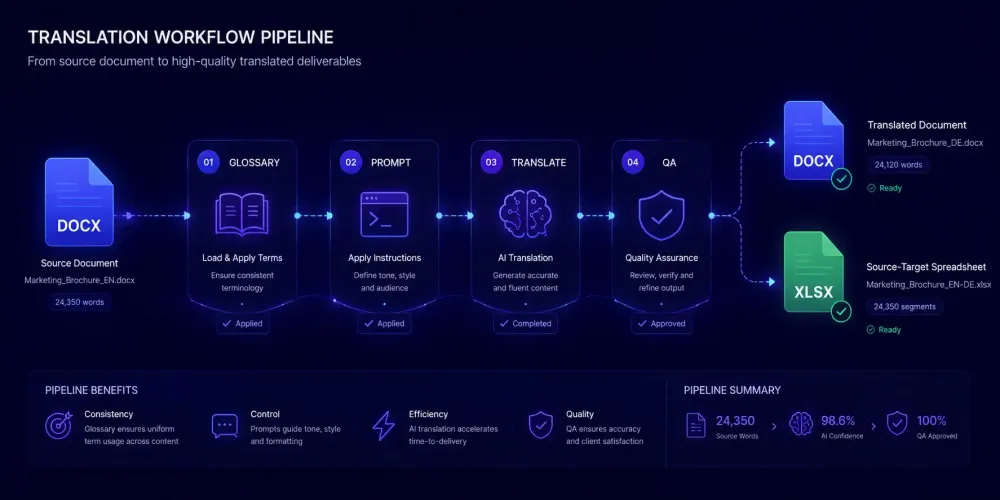
The first question people ask when they try SnapIntel is almost always some version of "walk me through what actually happens to my file." Once you know how SnapIntel works — step by step — you can plan review time, explain the process to clients, and figure out where it slots into the workflow you already have. Here's the complete picture.
How SnapIntel works: file intake and language selection
SnapIntel accepts two file types: .docx and .xlsx. That's the full intake list for now. When you create a project, you upload one or more files and manually select a source and target language. There's no automatic language detection.
For DOCX files, SnapIntel reads through the document structure — paragraphs, headings, table cells, and other supported containers — and normalizes them into an internal bilingual template. The layout information is stored separately so the final output can be rebuilt as a properly formatted DOCX rather than a wall of translated text.
For XLSX workbooks, the process runs in parallel: visible plain-text cells get normalized into segments, while the workbook structure is held in place so translated content can be written back into the correct cells on delivery. Formulas, references, hidden rows, and non-text content stay untouched.
Worth knowing before you commit a client project: DOCX files with heavy embedded objects, complex custom tables, or unusual containers produce less clean output than standard paragraph-and-table documents. When clients have a choice, asking them to send a clean export-from-Word DOCX — rather than a PDF-converted file — consistently produces better results at the output stage.
Domain analysis: optional, but skip it carefully
After upload and language selection, SnapIntel offers a domain analysis step. The UI shows a "recommended" hint next to the Analyze action — it doesn't block you from moving forward if you skip it.
Domain analysis reads the document content and classifies the subject area: legal, medical, financial, technical, general, and so on. The output becomes context you use when building the glossary and prompt in the next step.
For a two-page product sheet, you probably know the domain already and can write a prompt without running the analysis. For a 40-page pharmaceutical dossier or a complex procurement contract, running it first surfaces terminology clusters and subject-specific language patterns that tighten the glossary. On those projects, the 10 minutes upfront typically saves 45 minutes of revision later.
One detail worth keeping in mind: domain analysis output generates in whatever app UI language you have active at the time. English interface gives English output; Russian interface gives Russian output. If you share the project with a colleague working in a different interface language, they'll see analysis content in the language you had active when you ran it.
Building the glossary
The glossary is one of two required fields before translation can start — and the one most new users treat as a box to check rather than a real step.
A glossary is a list of source-to-target term pairs: the terminology you want the AI to treat as fixed. SnapIntel's built-in generator analyzes the document and proposes pairs you can review and edit directly in the interface. Alternatively, paste in a glossary from a previous project, a client brief, or your own termbase.
Two scenarios where the glossary makes an immediate, visible difference:
Technical documents. A manual for industrial automation equipment will have dozens of specialized terms — relay types, protocol names, component identifiers — where a generic translation choice produces text that reads wrong to any engineer in the field. A 20-term glossary locking in the correct translations for those specifics changes output quality more than any other single factor in the workflow.
Client brand terminology. Legal entity names, product names, and branded terms need to come through untranslated or in an exact client-specified form. Putting those in the glossary prevents the AI from translating company names or generating alternative renderings you then have to catch during review.
If you want to build a glossary before starting a full project — useful when scoping a new engagement or preparing a term list to share with a client — SnapIntel's free Glossary Generator extracts terminology from a document without creating a translation job.
Writing the translation prompt
The prompt field starts empty for every new project. There's no default text to accept, only placeholder copy explaining what to write.
The prompt is your instruction set to the AI. A prompt that does its job covers the target audience, the desired register (formal, informal, technical, accessible), domain-specific handling instructions (how to treat measurements, untranslatable terms, ambiguous source phrasing), and any formatting guidance relevant to the document type.
The gap between a vague prompt and a specific one shows up directly in the output. "Translate this document professionally" and "translate for German-speaking procurement officers; formal register; preserve all ISO 9001 clause references exactly; do not translate company names or product model numbers" produce measurably different results on the same file. The second takes three more minutes to write and saves considerably more in post-editing time.
A few patterns we've seen work well: for legal documents, naming the jurisdiction and specifying that legal terms of art should be preserved in the source language where no established target equivalent exists. For marketing content, specifying whether adaptation (finding target-culture equivalents) or closer translation is expected. For financial reports, listing the currency and unit conventions the target audience expects. None of this takes long to write. All of it changes what you get back.
Once both glossary and prompt fields have content, you confirm approval. This locks both fields and unlocks the Start translation control.
The approval gate: preparation before translation starts
SnapIntel blocks translation from starting until both the glossary and prompt are confirmed non-empty. The Approve button stays disabled if either field is blank or whitespace-only. The check also runs server-side — a direct API call with empty fields gets rejected the same way.
Editing either field after approval resets the approval state. You have to re-confirm before starting again.
This matters most in batch workflows. When you run 10 files against a single approved glossary and prompt, the quality of those two fields applies across every file in the set. Getting them right once — before the job runs — is more efficient than catching per-file inconsistencies during delivery review. The approval gate makes you do the preparation work at the start, not after you've already downloaded output.
There's also a subtler benefit: the act of writing a specific prompt forces you to think through the document's translation requirements before you've seen any output. Translators who skip this step tend to start editing the output and only then realize they had unresolved questions about register, terminology, or audience. At that point the job has already run. Answering those questions upfront — even briefly — consistently produces better first-pass output than trying to steer things through post-editing alone.
Running the job and tracking progress
Once approved and started, the job queues and begins processing. The project dashboard shows progress in real time: percent complete, rows translated, and — in batch runs — per-file status across the full set.
Cancellation is available while a job is running. If you start a job and then realize you forgot a critical glossary term, you can cancel, update, re-approve, and restart. It's not ideal for turnaround time, but it's there.
In batch runs, files track individually. If one file out of 10 hits an error — unsupported structure, an import issue, something unexpected in the content — the other nine keep going. The dashboard shows each file's state: queued, running, completed, failed, or partial. You know which files need attention before you download anything.
"Partial" is worth understanding before you see it the first time. A partial result means the job completed but some segments couldn't be translated — typically because a section used a container the system couldn't process cleanly. SnapIntel marks partial results explicitly so you don't deliver incomplete output by mistake.
What you get: translated file, neutral XLSX export, and QA report
A completed job returns several downloadable files, each serving a different part of the workflow.
The translated DOCX is the delivery file: the original document rebuilt with translated content in place, structured to match the original formatting for supported content blocks. Filenames follow a consistent pattern — basename(target-locale).docx. Upload agreement_EN.docx, translate to Spanish, download agreement_EN(es).docx. For XLSX inputs, the translated workbook follows the same logic: cells that were translated are updated in place, everything else stays unchanged.
The neutral XLSX export is a source-target spreadsheet with one row per segment. Use it to import the translated content into a CAT tool like Trados or memoQ, build a translation memory from the completed work, or give a post-editor a clean bilingual view without opening a CAT editor. For a detailed walkthrough of how to handle DOCX translation projects end to end, see how to translate any DOCX file with AI using SnapIntel.
The QA report tells you where human attention is most needed. It includes a quality rating for the job and flags specific issues: segments that scored below a confidence threshold, potential terminology inconsistencies, formatting anomalies. A high quality rating doesn't guarantee a perfect translation — it means the AI had high confidence in most segments and applied terminology consistently. A lower rating means the document likely has complex, ambiguous, or domain-specific content that needs careful review before delivery. The optional QA PDF packages this report in a shareable format if you need to document quality review for a client file.
Where SnapIntel fits and where it doesn't
SnapIntel works best when the document has standard formatting, you have terminology you can specify upfront, and what you need is a proper file deliverable — not just translated text in a chat window. Single-file projects and batch runs with per-file visibility both work well here.
It's the wrong tool when the project requires translator concordance, TM match calculations across legacy content, and the kind of detailed revision history a full CAT tool environment provides. It also handles DOCX and XLSX only — if a client sends a PDF, you'll need a DOCX version before you can use SnapIntel.
This doesn't apply if you're working in a mixed workflow where SnapIntel handles the AI pre-translation step and a CAT tool handles final review. The neutral XLSX export is designed for exactly that handoff: you bring the pre-translated content into Trados, memoQ, or whichever editor the translator uses, and they review against the source rather than translating from scratch. The time savings are real, and the workflow doesn't require switching away from the tools your team already knows.
Start with the preparation, not the translation
The mistake we see most often in new SnapIntel projects is treating the glossary and prompt as friction to get through before the "real" step. They are the real step. On any document above 15 pages, or in a specialized domain, the quality of those two inputs directly determines how much time you spend on post-editing afterward.
Run domain analysis on anything substantial. Build a glossary that covers the terms your client actually cares about — branded names, technical identifiers, fixed phrases that need to come through in a specific form. Write a prompt that names the audience and register explicitly rather than defaulting to "professional." Let the job run. Then use the QA report's per-segment scores to direct your review rather than reading the entire document from start to finish. The segments the AI flagged are the ones that need your attention; the rest are almost certainly fine.