How to translate any DOCX file with AI using SnapIntel
Translate DOCX with AI without breaking formatting, losing context, or skipping QA. A practical workflow from upload to review-ready delivery.
Most translators who sit down to translate DOCX with AI run into the same three problems within the first ten minutes. The file comes back with broken numbering, the table of contents is half in English and half in the target language, and the terminology drifts so badly between page 3 and page 12 that the client calls it "obviously machine translated." We've watched this happen across agencies, freelancers, and in-house teams. The tools got faster, but the workflow around them did not. So the output still needs hours of cleanup, and the time saved by running AI translation in the first place gets spent fixing it.
This is the piece most generic "DOCX ai translation tool" guides skip. Running a file through a translation API is the easy part. The structured work around that translation, the part that decides whether you deliver a clean file or a messy one, is where the real difference shows up. Below, we walk through what actually happens when you try to translate DOCX with AI, what breaks, what to build into the workflow, and how SnapIntel handles the steps most teams reinvent themselves every time.
What actually breaks when you translate a DOCX with AI
A Word document is not a block of text. It's a zipped XML package with styles, runs, numbering references, footnote tables, and image anchors. When a translator opens a DOCX in Word, all that structure is invisible. When an AI model sees the same file, structure is the only thing it sees, and the model has no idea which parts are content and which parts hold the document together.
Three failure modes come up in almost every project we review. The first is segment fragmentation. A single sentence inside Word often gets split across multiple runs because of a bolded word, a hyperlink, or an inline style change. An AI tool that treats each run as a separate segment will translate "the quarterly revenue grew by 14%" as three disconnected fragments, and the target sentence reads like a slot-machine output.
The second is layout drift. Numbered lists, cross-references, and bookmarks live as internal IDs inside the DOCX. If the translation pipeline doesn't preserve those references, you get a translated file where section 4.2 points to a heading that no longer exists, or where "See Figure 3" now appears before the document ever mentions Figure 3.
The third is the one clients notice first: inconsistent terminology. When a DOCX runs 40 pages and the AI model sees each page as an isolated call, the same source term gets translated four different ways. Without a glossary injected into the prompt and checked against the output, you end up with "client," "customer," "user," and "subscriber" all mapped to one original term that should have stayed consistent.
The three steps generic AI translation tools skip
Most tools marketed as a universal DOCX ai translation tool skip the same three steps. Understanding what they skip is how you decide whether a given workflow will actually save you time or just shift the cleanup to the end.
The first skipped step is segmentation. Proper segmentation splits a DOCX into translation units that correspond to sentences, not XML runs. Good segmentation uses sentence-boundary rules that work for your language pair and respects inline tags instead of breaking them. Bad segmentation gives the model garbage in, which produces garbage out no matter how capable the underlying model is.
The second is context preparation. A translation model benefits from two context anchors: a domain summary so it knows whether it's reading a pharmaceutical patent or a marketing brochure, and a glossary so it translates your domain terms consistently. We've seen identical source documents produce wildly different translation quality depending only on whether a domain note and a 30-term glossary were injected into the prompt.
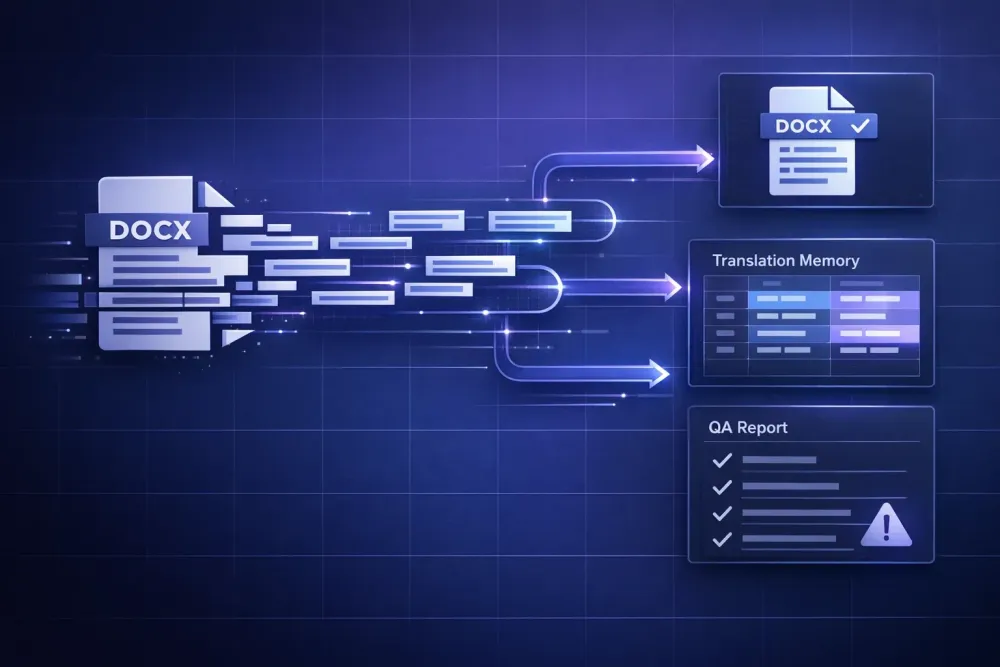
The third skipped step is reviewable output. Once the translation runs, a professional workflow needs three artifacts, not one. You need the translated DOCX for delivery, a bilingual spreadsheet so the segments can be loaded into a CAT tool or a translation memory, and a QA report so a reviewer can see which segments are high confidence and which need eyes on them. Tools that give you only the translated file force the reviewer to read the entire output from scratch, which is the slowest possible form of post-editing.
How to translate DOCX with AI without losing formatting
If you want to translate DOCX with AI and keep the original formatting intact, the workflow has to separate content from structure at import time and recombine them at export. This is the part that looks simple on a diagram and is actually the hardest thing to get right.
At import, the DOCX is unzipped, its XML parsed, and each run tagged with its style, numbering anchor, and inline formatting. The text inside the runs is pulled out into translation units. Inline markup like bold, italic, or a hyperlink becomes a placeholder that travels with the segment, so the translation model sees something like "the {b}quarterly{/b} revenue grew by {percent}." The model's job is to keep the placeholder in the right grammatical position in the target language. When Spanish puts the adjective after the noun, the placeholder moves with the word it was wrapping.
At export, the translated segments get stitched back into the original XML. Styles, numbering references, and bookmark IDs stay in place. The result is a DOCX where the table of contents regenerates correctly, cross-references still resolve, and images sit where they did before.
Two specific failure points are worth flagging. Tables inside tables tend to confuse simpler pipelines, especially when the nested cells carry styles from different style sets. And footnotes that reference numbered items in the main body will break if the pipeline treats the footnote and the body as independent documents. A workflow that only round-trips a plain paragraph is not the same as one that handles a contract or a technical manual.
SnapIntel's import step validates the DOCX structure before translation starts, and the output DOCX preserves formatting from the original file. If the file fails validation, you see the error before you've spent any API credits or waited through a job that was going to produce a broken file anyway.
Why a translation memory output is non-negotiable
A translation memory, or TM, is a bilingual record of every segment you've translated in the past. It's the single most compounding asset a translator or agency can accumulate, and it's the thing most ad-hoc AI translation workflows throw away at the end of every job.
Here's the practical cost of not saving your AI output into a TM. You translate a 12,000-word technical manual in April. In September, the client sends an updated version with 30% overlap. Without a TM, you pay to translate those overlapping segments again, your terminology drifts because the April context is gone, and the reviewer has to read segments that were already approved four months ago.
With a TM, the overlapping segments come back as 100% matches or high-fuzzy matches, your terminology stays consistent with the earlier delivery, and the reviewer only reads the new material. Even if the AI did the heavy lifting in April, saving the output as a bilingual file means April's work compounds into September's quote. Over a year, this can mean a meaningful margin improvement.
The easiest way to build a TM habit is to make the bilingual spreadsheet output the default export from every AI translation job. In SnapIntel, every translated DOCX comes with a spreadsheet export of the segments, which you can import into Trados, memoQ, Smartcat, or any CAT tool that accepts XLSX or TMX. You can read more about how batch jobs in a universal DOCX pipeline produce multiple delivery-ready artifacts at once, not just a single translated file.
Building a QA report into your DOCX translation workflow
Post-editing without a QA report is like proofreading a 40-page document by reading every word. It's theoretically possible, but you will miss things, and you will take three times as long as you need to. A QA report flags the segments most likely to have problems, so the post-editor starts where the risk is highest instead of at segment one.
Useful QA reports look at a few specific signals. Terminology mismatches: did the model translate a term from your glossary differently anywhere in the document? Numerical and date inconsistencies: did a number in the source get rendered incorrectly in the target? Empty or truncated segments: did any cell come back shorter than it should be? Inconsistent tone: does segment 120 sound formal when the first 100 were informal?
We've seen QA reports cut post-editing time by roughly a third in typical projects, with larger savings on technical and regulatory content where terminology is the main failure mode. The tradeoff is that a QA report is only as good as its rules, so you have to trust your glossary and your style guide to be up to date before the report fires.
When to run QA mid-batch instead of at the end
If you're translating a 20-file batch, running a QA check on the first completed file before the rest finish lets you catch systemic issues early. A wrong glossary entry, a prompt that's steering the model toward a wrong register, an incorrectly detected language pair — all of these show up in file one and will repeat across all 20 if you don't stop. For batch-aware workflows, this mid-batch QA is the single biggest time saver we see. SnapIntel's QA report is generated per file, so you can inspect file one while files two through twenty are still running.
When a structured AI workflow beats raw ChatGPT translation
Translators sometimes ask why they would use a structured DOCX ai translation tool when ChatGPT or Claude can translate a paragraph pasted into a chat window. The honest answer: for one paragraph, they shouldn't. For a DOCX that needs to be delivered to a client, raw chat translation has four specific limitations.
Chat interfaces strip formatting. Paste a DOCX's contents into a chat and you lose every style, every numbered list, every table structure. You're translating text, not a document. Reconstructing formatting manually in the target file is the longest part of the job.
Chat interfaces lack a glossary hook. You can paste a glossary into the prompt once, but you can't systematically inject it per segment across a 40-page document, and the model's attention to your glossary degrades as the conversation grows longer.
Chat interfaces don't produce a TM export. Whatever the model translates stays trapped in a chat log, not saved as a bilingual file you can use in future projects.
And chat interfaces don't run QA. You get a translation, and you either trust it or re-read it from scratch.
A structured workflow doesn't make the model smarter, it makes the inputs and outputs usable. This works best for documents over roughly 2,000 words, for files with tables or numbered lists, and for any project where the translated file will be delivered to a paying client. This doesn't apply if you're translating a short email or exploring a concept; for those tasks, a chat interface is fine.
Practical takeaway: a minimal DOCX AI translation checklist
Before you translate your next DOCX with AI, walk through this checklist. It takes about five minutes and removes most of the failures we described above.
Validate the source file first. Open the DOCX in Word, check that the table of contents regenerates cleanly, and confirm no tracked changes or comments are pending. A file that's broken before translation will be worse after.
Prepare a glossary, even a short one. Twenty to thirty terms covering the domain-specific vocabulary and the client's branded terminology will do more for quality than almost any other single input. If you don't have a client glossary, build one from the client's existing translated materials.
Write or generate a domain note. A single paragraph that tells the model "this is a pharmaceutical patent in a post-marketing authorization filing, target audience is regulatory reviewers, use the registered trade name where it appears in the source" changes the output quality visibly.
Decide where the TM export goes. Pick your destination CAT tool before you start the job, not after. If you're importing into Smartcat or memoQ, make sure the export format matches.
Plan post-editing around the QA report. Sort your segments by QA confidence score, start with the lowest-confidence segments, and only read the high-confidence ones on a second pass.
To run this workflow without building it yourself, SnapIntel accepts a DOCX upload, segments the file, lets you review and edit the glossary and prompt before translation starts, runs the job, and returns a translated DOCX, a bilingual spreadsheet for your TM, and a QA report. You can see the product workflow in the SnapIntel docs or try it on a short file first to see how the artifacts line up with how you already work.
A good DOCX AI translation workflow is not the one with the best model. It's the one where the model's output arrives in a shape your review process can actually use.