How to update any translation memory with AI-translated content
How to update translation memory with AI output — a practical step-by-step guide for Trados, memoQ, and Smartcat using TMX and XLSX formats.
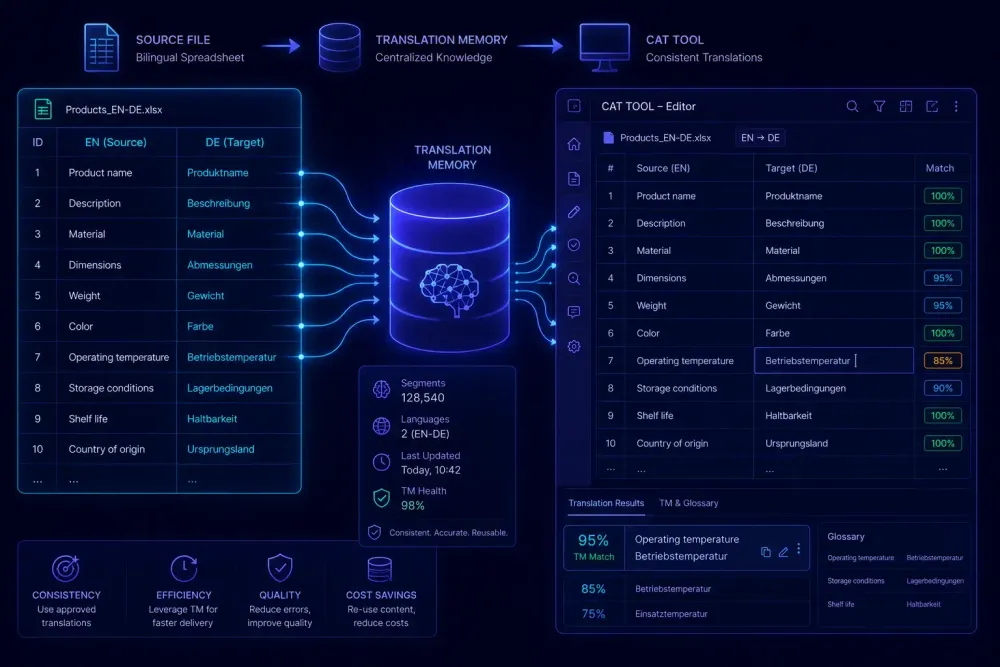
Running AI translation without updating your TM afterward is a habit that costs real money on every repeat project. Each approved segment that stays out of your translation memory is a segment you'll pay to translate again the next time a similar document comes through. Most translators and agencies know this in theory. What stops them is the actual process — getting AI output into a format the CAT tool will accept, running the import, dealing with segmentation gaps. This guide walks through how to update translation memory with AI-translated content for the three most common CAT tools: Trados, memoQ, and Smartcat.
Why your TM doesn't update after an AI translation run
TM entries traditionally come from human translators working inside a CAT tool. Confirm a segment in Trados, memoQ, or Smartcat and it goes into the TM automatically. The process is invisible because it's built into the editor.
AI translation breaks that pipeline. When you run translation outside your CAT environment — using an external AI tool, an API-based workflow, or a standalone translation product — confirmed output ends up in a translated document with no connection to your TM. The CAT editor never processes the segment, so the TM never records it.
Over time, that gap compounds. CSA Research has published figures showing TM reuse can reduce total word costs by 15–40% on typical enterprise projects. Technical documentation and legal content with high repetition sit at the high end of that range. Every approved AI segment that never makes it into the TM is a missed opportunity to build that reuse base.
The second cost is less obvious: terminology drift. When approved AI output stays outside the TM, your team makes the same terminology decisions repeatedly on fresh text. After a few months, the translation of a recurring phrase starts to vary across projects. Clients notice, even if they can't name the source of the inconsistency.
The fix involves one of two formats (TMX or bilingual XLSX), depending on what your CAT tool accepts at import.
TMX vs bilingual XLSX: which format do you need?
TMX (Translation Memory eXchange) is the universal standard. It's XML-based, carries source segments, target segments, language codes, and optional metadata like creation date. Every major CAT tool can import and export TMX, which makes it the right choice whenever you need to move TM data between tools or share entries with a vendor.
Bilingual XLSX is simpler: a spreadsheet with source text in one column and target in another. No XML involved. It's easy to review in Excel before you commit anything to your TM. The limitation is that not every CAT tool accepts bilingual XLSX as a direct import format — some require TMX.
Where the main tools stand:
- Trados Studio: imports TMX natively; XLSX requires conversion first
- memoQ: accepts TMX, tab-delimited TXT, and XLSX with column mapping
- Smartcat: imports TMX and bilingual XLIFF; XLSX needs conversion
- Phrase (formerly Memsource): TMX is standard; bilingual XLIFF also works
If your AI tool outputs only a finished translated DOCX with no bilingual structure, you'll need an alignment pass before TM import is possible. Most full-featured CAT tools include an alignment module, but it adds a manual step and introduces error risk if source and target segment counts don't match cleanly. Tools that produce bilingual output from the start save that step.
Preparing the bilingual file before import
What goes into your TM shapes every future project that reuses those segments. Don't import raw AI output without a review pass.
Bilingual XLSX is the easiest format to work with here. Open the spreadsheet, scan source against target, and delete rows you're not confident about — mistranslations, formatting errors, uncertain terminology. If the AI translated a domain-specific compound incorrectly throughout the document, remove every row containing that term rather than importing the bad data and trying to clean it later.
Once the file is reviewed, two paths:
- If your CAT tool accepts XLSX directly, import and you're done.
- If it requires TMX, convert using your CAT tool's import wizard or the Okapi Framework's Rainbow tool (free, no full installation required for basic conversion tasks).
One thing worth checking before either path: segment consistency. AI translation tools often break sentences differently from how a CAT tool would segment the same text. A segment spanning two sentences in the AI tool might appear as one unit in the TM. That mismatch means your CAT tool won't find the match on future projects, even though the translation exists in the TM.
If you're seeing low TM hit rates after an import, segmentation differences are usually the cause, not data quality. Many CAT tools include import options to normalize segmentation on the way in — check those settings before assuming the content itself is the problem.
Step-by-step: importing into Trados, memoQ, and Smartcat
Trados Studio
- Open your TM: TM > Open > Existing TM.
- In the Home ribbon, select Import under Translation Memories.
- Choose your TMX file and confirm.
- Set import behavior: for AI-origin content, "Skip duplicates" keeps existing human-reviewed entries authoritative and only adds new segments.
- Trados logs skipped or errored entries in the import report.
For bilingual DOCX output (which some AI workflows produce), Trados's Alignment tool can extract source/target pairs and write them to the TM directly — no TMX conversion needed.
memoQ
- Open your TM from Resource Console > Translation Memories.
- Click Import in the sidebar.
- For XLSX, set column 1 = source, column 2 = target, and specify language codes manually. TMX and tab-delimited formats also work.
- memoQ supports metadata tagging at import time. Marking AI-origin entries separately lets you audit or exclude them later when running TM quality reports by source.
Batch import across multiple TMs follows the same path — useful when managing separate TMs per client or domain.
Smartcat
Smartcat's TM management is under Resources > Translation Memories.
- Select the TM you want to update.
- Click Import and choose TMX or bilingual XLIFF.
- Smartcat deduplicates against existing entries automatically.
Direct XLSX import isn't supported. Convert to TMX first — the Okapi Framework handles this without requiring a full setup.
What to review before you run the import
AI translation at its current state produces errors at a low but nonzero rate. Bad TM entries propagate forward on every future match. The things most likely to cause downstream problems:
Terminology accuracy matters most. Check that the specific terms your glossary or client style guide requires are correctly translated. A wrong term in the TM will resurface on every project where that segment appears. Most agencies flag uncertain entries rather than deleting them outright — the data stays accessible without silently influencing future translations.
Number and date formatting is the second check. AI tools sometimes swap date conventions or transpose numeral groupings between locales. These errors are invisible to fluency reviewers but obvious to clients.
Inline tags and placeholder variables are worth sampling if your bilingual file includes markup — bold, italic, or placeholder codes for dynamic text. A broken tag in a TM entry corrupts the formatted output every time that match fires in the editor.
Very short segments (under five words) and very long ones (over 50 words) also reward spot-checking. Short segments get mistranslated more often because the model has little context to work with. Long segments frequently have structural problems from the AI fusing ideas that should stay separate.
A 20–30 minute review pass on a 10,000-word document is a reasonable time investment for what's downstream.
Common import mistakes
Importing unreviewed output under deadline pressure is the pattern we see most often. A TM corrupted this way causes problems across the next several projects where those segments match. It's better to skip the import and do it properly later than to rush it.
Mismatched language variants cause silent failures. A TM holding British English (en-GB) and an import of US English (en-US) segments will produce near-zero hit rates even on content that's functionally the same. Language codes are a two-second check that's easy to miss.
Overwriting human-reviewed entries with AI output is the third problem. Unless you have a specific reason to replace verified segments, set import mode to "Skip duplicates" or "Add new only." Both Trados and memoQ expose this as a configurable option during import. It should be on the checklist, not an afterthought.
Building a post-translation TM update routine
The most consistent approach we've seen in production workflows is a post-delivery update cycle: after each project is approved and shipped, a project manager runs a TM update pass before archiving the project. It takes 15–20 minutes.
- Export the bilingual file from the AI translation run (XLSX, TMX, or bilingual DOCX).
- Quick review: terminology, numbers, inline tags.
- Remove or flag uncertain rows.
- Import into the project TM using your CAT tool's standard import path.
- Log the word count added.
That last step has a practical use beyond record-keeping. When a client asks why there's a TM discount on the next project, you can point to the exact word count captured from their prior work. That's a more productive conversation than explaining TM mechanics from scratch.
If you're translating DOCX or XLSX files and want a workflow that already exports source/target pairs ready for CAT import, SnapIntel produces a neutral XLSX alongside the translated document. The format maps to standard bilingual XLSX import without an additional conversion step for tools that accept spreadsheet input.
TM savings accumulate faster than most teams expect once the base reaches a few thousand segments. Running the import routine after every project is how you get there. For more on where AI fits in a translation workflow, see our overview of how AI translation tools are changing the way translators work in 2026.