How to translate a PPTX presentation with AI using SnapIntel
How to translate a PPTX presentation with SnapIntel: a complete workflow guide covering upload, glossary setup, AI translation, and QA review.
The first time we watched someone translate a 40-slide product roadmap by copying text slide by slide into a generic AI tool, the output was readable. Product names were wrong in three places, a table row had dropped entirely, and the speaker notes came back half their original length — but readable. That's the baseline most PPTX translation workflows compete against, and it's a low one when the deck has to go to a client.
SnapIntel added native PPTX support in June 2026. This guide walks through how to translate a PPTX presentation with SnapIntel, from creating a project to downloading a translated file with a QA report.
Why translating a PowerPoint presentation is harder than it looks
A PPTX file is not a flat document. Each slide contains multiple independent text containers: slide body text boxes, tables, shapes, grouped shape elements, speaker notes, and master/layout text that repeats across the full deck. Each container has its own fixed size and position, and each responds differently to translated content that runs longer or shorter than the source.
The structural variety means the approach that works for DOCX — segment the text, translate it, reassemble — doesn't map cleanly onto PPTX without structural parsing first. Flattening a slide to plain text and rebuilding from scratch breaks layout, loses formatting, and typically damages embedded elements that were never supposed to change.
Master slide text adds a second layer of complexity. A presentation might carry the same tagline, page label, or contact information on every slide through a template. When that text needs translation, it has to be handled once and propagated consistently, not found and fixed slide by slide after the fact.
Terminology consistency is a third problem that presentations make worse than most document types. A slide deck repeats the same product names, feature labels, and campaign phrases simultaneously across slide titles, body bullets, and speaker notes. If a product name renders differently on slide 4 and slide 17, that inconsistency is exactly what clients find during review.
Text expansion rounds out the challenge. Spanish and French content typically runs 15–25% longer than English. German technical text often expands 20–35%. When translated content goes into a fixed-size text box designed for the shorter source, the overflow either cuts content off or forces a font reduction that makes the deck look inconsistent.
We've covered layout fidelity in more detail in How to translate a PowerPoint presentation with AI without breaking the slide layout.
What the common approaches miss
Most translators dealing with PPTX files settle on a workaround, and each one has a visible limit at any real volume.
Extracting slide text into a Word document, translating it, then pasting it back is reliable — but for a 30-slide deck with tables and master slide elements, the extract-and-paste cycle adds hours at a per-word rate that often doesn't cover the extra time. The paste-back step also introduces errors: text boxes placed slightly off, fonts not matching, formatting breaks that need manual correction slide by slide.
Generic document translators — free online converters, Google Translate's document upload, basic AI tools — are fast but offer no preparation step. You can't specify that a product name should stay untranslated, set the tone for presentation copy, or get a quality report on the output. For internal rough drafts they sometimes work. For professional delivery they don't.
Processing PPTX through a CAT tool gives segment-level control and translation memory matching, but the configuration overhead — filter settings, import/export round trips, alignment review — often doesn't justify the setup for a 20-slide deck representing 2,000 words of content.
There's also a less obvious gap: none of these approaches produce a record of what decisions were made. If a client questions why a term was translated a certain way, or asks for a consistent revision, there's nothing to point to. A structured workflow with a glossary and prompt creates that record before the job starts.
What's consistently missing is a glossary that locks in terminology, a prompt that sets register and handling instructions, and a quality report when the job finishes. That's the workflow SnapIntel is built around for PPTX files.
How to translate a PPTX with SnapIntel
You create a project, upload your file, and select source and target languages manually. There's no automatic language detection; you specify the pair yourself.
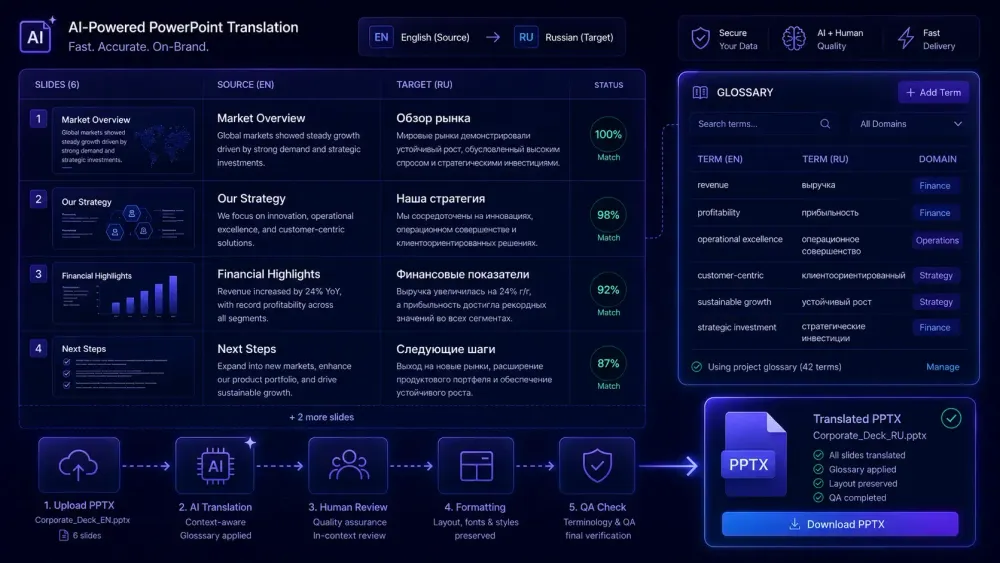
After import, SnapIntel normalizes the presentation into an internal bilingual template. This step extracts text from slide body elements, speaker notes, table cells, grouped shape text, and master/layout elements, while leaving images, embedded charts, and non-text objects in place. The extracted content is what the translation step works from. The same structural information is what the assembly step later uses to rebuild the output in the original PPTX format, placing translated text back into the correct container at the correct position.
A domain analysis option appears in the project view after import. Running it gives the system context about your content type — sales deck, technical training, financial briefing. It takes around 30 seconds and is not required, but it prepares better context for the glossary and prompt generation steps that follow. For presentations with specialized vocabulary, it's worth running before you build the glossary. If you skip domain analysis on a deck with highly domain-specific content, the candidate terms surfaced during glossary generation may be less precisely suited to the subject than they would be after analysis.
Before translation can start, both the glossary and translation prompt must be non-empty and explicitly approved. The Start translation button stays disabled until both conditions are met, and this is enforced at the server level. We've built it this way because presentation content is dense with terminology that has to stay consistent across the whole deck. Fixing inconsistencies after translation is harder than locking in the right terms before the job starts.
Once you approve, the job runs. Progress is visible in the project dashboard: percent complete and per-file status. For a 25-slide deck, jobs typically finish in a few minutes. When complete, you download the translated PPTX, a neutral XLSX export containing source and target segments, and a QA report with a quality rating.
Setting up the glossary and prompt for a presentation
The preparation step is where most of the quality difference between approaches shows up concretely. Here's what it looks like on a real project.
An agency is translating a 32-slide quarterly product roadmap from English to French for a B2B software company. The deck uses product feature names that should stay in English as brand terms, French business language for the value proposition sections, and technical documentation terminology in the speaker notes that needs to match the client's existing reference materials. Without a glossary, the AI picks its own renderings for those terms, which may not match what the client expects.
In SnapIntel, you generate a glossary from the uploaded source content. The tool surfaces candidate terms from the file. You edit the output: if "AutoSync" stays in English as a brand term, you add an untranslated entry. If "deployment" should always render as "déploiement" rather than "mise en place" in this project, that goes in. The glossary is an active constraint that shapes how the translation step handles those terms, not just a reference document to compare against afterward.
The translation prompt sets register and handling instructions. For a roadmap deck, a prompt might read: "Translate into formal business French. Keep product feature names in English as branded terms. Translate speaker notes in full, maintaining a professional tone. Do not translate slide headers that contain product names." That level of specificity makes a measurable difference in how much post-editing the output needs.
For a freelance translator handling a 15-slide client pitch deck under a short deadline, glossary setup takes 5–8 minutes. It's easy to skip for "short" presentations, but presentations pack more brand-sensitive content per word than most document types. A glossary pays back faster here than it would in a long technical manual, even when the deck is small.
What SnapIntel translates and what it leaves unchanged
PPTX files contain content that should be translated and content that should stay as-is. Understanding this distinction matters for knowing what to expect in the output.
SnapIntel extracts and translates text from slide body elements, speaker notes, visible plain-text table cells, grouped shape text, and master/layout text within the supported content slice. Translated content is assembled back into the same structural positions in the output file: text box into text box, table cell into table cell, notes pane into notes pane.
Images, embedded charts, decorative shapes, and non-text objects are not modified. If a slide has a chart with English axis labels embedded in the chart data itself, those labels are part of the chart image and won't be translated. This reflects how PPTX files store chart data internally. If those same labels exist as text boxes overlaid on the chart (a common design pattern in business presentations), they will be extracted and translated normally.
Before uploading, it's worth scanning your presentation for chart-embedded text labels that need translation. If you find them, you can convert them to text boxes in PowerPoint before uploading, or plan to handle them manually after the SnapIntel job finishes. This doesn't apply to chart titles or annotation labels that exist as free-standing text shapes outside the chart container — those are extractable and will be translated.
This distinction doesn't affect most standard business decks, but if your presentation is data-heavy with annotated charts, accounting for it before you start the job is easier than accounting for it in review.
Reviewing the output before delivery
After downloading the translated PPTX, three things are worth checking before sending to a client.
Slide text overflow is the most common issue. Even with a well-prepared glossary, some slides will have translated content that runs longer than its container — most often in slide titles and narrow text boxes. A quick scroll through the output with attention to layout catches the most obvious cases. This is more of a concern in languages with significant text expansion than in languages with length closer to English.
Speaker notes need a separate review pass. They're less visible than slide bodies and easy to overlook during review. SnapIntel translates notes as part of the main job, but if your glossary included terms that appear mainly in the notes, cross-checking those entries against the QA report shows you where to focus the post-editing effort.
The neutral XLSX export is the artifact to use if you plan to import the translation into a CAT tool's TM after delivery. It contains source and target segments in a two-column format compatible with most CAT tool import flows. Running a duplicate check against existing TM entries before importing is worth doing to avoid overwriting better-quality existing translations.
The QA report surfaces a quality rating and flagged issues from the translation job. Reviewing it before delivery takes a few minutes. If the report flags specific segments as low-quality, that's where to direct the post-editing pass rather than reviewing the full deck from the beginning. For agencies delivering to clients in technical or regulated-content domains, attaching a QA summary to the delivery file is worth building into the standard handoff process.
Getting started
The most practical way to test this workflow is on a presentation you've already translated — one where fixing terminology inconsistencies or reformatting slides after the fact took more time than expected. Upload it to SnapIntel, spend 5–10 minutes on the glossary and prompt, run the job, and compare the output against what a generic document translator gives you on the same file.
The difference shows up most clearly in terminology consistency across the full deck and in the state of the speaker notes. Those are the two areas where ad hoc approaches create the most rework. A structured workflow concentrates post-editing where it belongs — on judgment calls about specific phrasing — rather than on fixing terms and broken notes that a preparation step would have handled before the job started.