How to translate a PowerPoint presentation with AI without breaking the slide layout
How to translate a PowerPoint presentation with AI without breaking the layout: text expansion, common failures, and a practical step-by-step workflow.
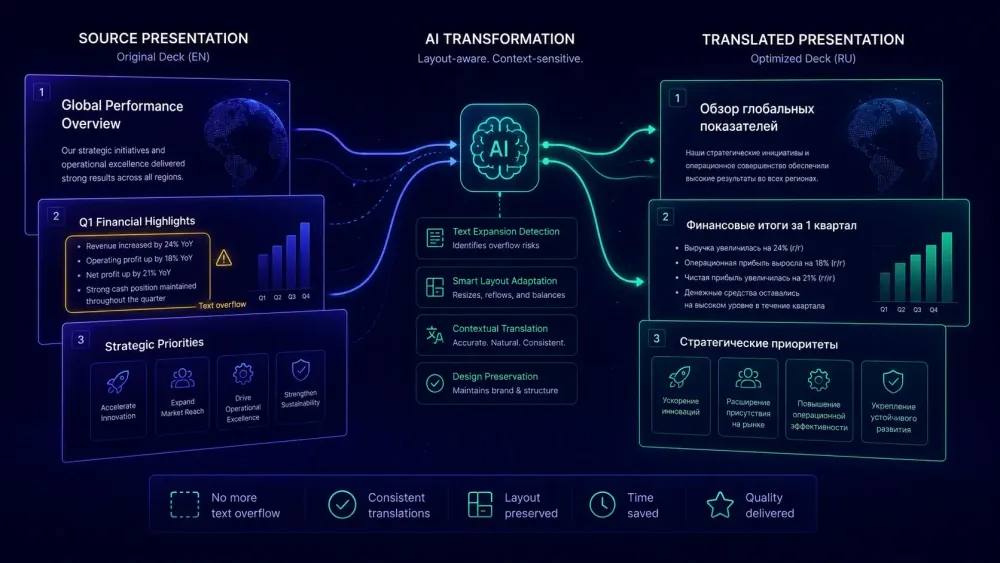
If you've ever tried to translate a PowerPoint presentation with AI, you probably know the moment. The translation runs, you open the output file, and the first thing you notice isn't whether the language is accurate. It's a title bleeding onto two lines because German added seven words to an English five-word heading, or a text box where the last bullet point has disappeared behind the slide boundary. The translation might be fine. The slide doesn't look deliverable.
This isn't a problem specific to AI translation. It's a format problem. PPTX files have structural properties that make them resistant to any text replacement, automated or manual. Consistent results come from understanding those constraints before translation runs, not from discovering them afterward.
Why PowerPoint files break when you translate them
A DOCX paragraph reflows. Add words to a paragraph in Word and it grows downward. Remove words and the white space shrinks. The document adjusts to its content.
A PowerPoint text box doesn't do that. Every element on a slide — title placeholder, body text box, caption, shape label — lives inside a container with fixed width and height attributes written directly into the file's XML. When translated text is longer than the original, the container stays the same size. The text overflows, clips at the boundary, or PowerPoint auto-shrinks it using a feature that sometimes helps and usually creates inconsistency across slides.
Two more things make this format demanding. First, many presentations use custom fonts. If those fonts aren't installed on the machine processing the translation, PowerPoint falls back to a substitute. Fallback fonts have different character widths, so text that fit the box in Calibri might overflow in Arial at the same point size. Embedding fonts in the source file before sending it for translation removes this variable entirely.
Second, presentations often use grouped shapes — diagram elements, icon sets, infographic components where several objects are grouped and treated as a unit. Text inside a grouped shape translates without structural error, but can visually shift relative to its neighbors because the bounding box of the group doesn't automatically expand. We've reviewed translated decks where the text content was accurate and the visual layout looked like it had been shuffled.
These aren't edge cases. They're predictable properties of the format, and they show up in most pptx translation projects that involve more than a few slides.
How AI processes PPTX structure — and where it tends to fail
A PPTX file is a ZIP archive containing XML files. The slides, the slide master, layout definitions, images, and font data all live in a structured directory inside that archive. An AI translation tool needs to parse this XML, extract translatable strings, translate them, and write them back into the correct positions without disturbing the structural markup that controls the visual output.
The better tools work at the run level. In PowerPoint's XML, a text box isn't a single block of text — it's a series of runs, each with its own formatting properties: bold, italic, color, font size, hyperlink target. A tool that translates at the run level preserves formatting for individual words or phrases rather than applying blanket formatting to the translated paragraph. If the source text has one phrase in red and the rest in black, the target should maintain that distinction at the equivalent position in the translated text, not flatten everything to one style.
What should survive pptx translation intact: shape position and dimensions, placeholder type (title, content, and subtitle placeholders have different PowerPoint behaviors that matter for template-driven files), run-level text formatting, and the slide master inheritance chain.
That last one is often overlooked. Presentations that use recurring elements across slides — a footer with the project name, a header with the client's logo text, slide numbers with custom label text — typically store those elements in the master or layout slides, not on the individual slides themselves. A translation tool that only processes slide-level content leaves those strings in the source language. You end up with target-language body content and source-language framing. It passes a quick visual scan and surfaces in the client's first meeting.
Speaker notes are another inconsistency point. Notes don't have fixed containers, so translating them creates no layout risk. But some tools skip them by default or only translate them when you explicitly opt in. For presentations used as working documents with detailed presenter notes, skipping the notes produces an incomplete delivery.
Text expansion: planning for the extra space
The phenomenon is well-documented in localization practice, but it catches teams off guard regularly. Equivalent content in most European target languages takes more characters than it does in English. CSA Research maintains reference expansion tables that are worth keeping available — German runs 20–30% longer than English, Spanish and French typically 15–25%. Individual phrases, which dominate slide content, often exceed those averages because English is particularly efficient with short conceptual expressions.
On a DOCX, 25% text expansion means the document gains a page or two. On a slide, it means the title measured to fit the box now runs onto two lines, or the third bullet point gets pushed outside the visible area.
The most practical way to get ahead of this is to identify overflow-risk slides before the AI translation runs. Scan the source deck for slides where visible text already fills most of its container: a title at full width, body text that ends just before the container boundary, a table with dense cells. Mark those slides. They will need layout attention after translation regardless of which tool you use.
A rougher but fast check: in a copy of the source file, temporarily replace the content of text-heavy slides with placeholder text that's about 25% longer. Any container that overflows with that test will overflow after translation. This takes ten minutes and tells you exactly where to focus post-translation work before the AI even runs.
For East Asian target languages, the dynamic works differently. Chinese, Japanese, and Korean are often more compact than English for equivalent meaning. The challenge there comes from character spacing, line-height behavior, and CJK font metrics — these can affect vertical layout in ways that don't scale predictably from text length alone.
The failure patterns that come up most often
After reviewing a lot of translated PPTX files as part of translation QA work, these are the failures we see most consistently.
Body text overflow is the most common one. The source text was close to the container edge, the translation is longer, and text spills outside the box or gets clipped. Usually the first thing a reviewer notices.
Table cell misalignment is the second most common. PowerPoint table column widths are fixed by default. When translated content is longer, the text wraps to additional lines, increasing row height. That increase doesn't apply uniformly across columns unless all cells overflow simultaneously — so a clean source table ends up with some rows tall and others normal height, cells visually out of step with their neighbors.
Grouped shape text displacement doesn't apply if your deck doesn't use grouped elements. But agency-produced and template-based decks commonly do. Text inside a grouped shape may translate correctly at the element level while visually overlapping adjacent shapes in the group, because the group's bounding box doesn't expand to accommodate the new length. This particular failure is hard to catch in automated QA because element-level validation passes.
Untranslated master content shows up when a tool only processes slide-level content. Footers, headers, recurring labels in the master or layout slides get left in the source language. Because these elements appear identically on every slide, reviewers stop registering them as something to check. They surface unchanged in the final delivered file.
Font substitution artifacts appear when the source uses a font that isn't available on the translation machine. The fallback font has different character widths, and text that fit in the source overflows in the output. Embedding fonts in the source file before translation prevents this.
How to translate a PowerPoint with AI: a step-by-step workflow
This workflow handles most pptx translation projects. It assumes a defined language pair, a reasonably clean source file — no slides that are embedded images of text, no complex animation states that hide content — and at least a basic glossary or list of approved terms.
Prepare the source file first. In PowerPoint, go to File > Save As and enable font embedding before uploading anything. Check slides where text containers are near capacity and note which ones are likely to need layout attention. This takes five minutes and makes the review phase considerably faster.
Set the language pair explicitly. Always specify source and target language manually, don't leave it to auto-detection. For Spanish, specify Spain or Latin America — the variant distinction affects phrasing and formality in ways that matter for professional content.
Set up your glossary before translation runs. If the tool accepts glossary input before the AI starts, use it. Terms that should translate consistently — product names, technical terminology, branded phrases — need to be specified before translation, not corrected afterward. Post-editing glossary errors takes longer than prevention.
Run the translation and open the output in PowerPoint, not in the translation tool's browser preview. The preview is useful for reading the translation; it's unreliable for layout checking. Download the actual PPTX, switch to Slide Sorter view, and scan thumbnails for visible text clipping. Overflow problems show up here in two minutes. Then open each flagged slide in Normal view.
Handle each layout issue individually. For overflow: reduce font size by one or two points, rephrase the translated text to be more compact, or expand the text box dimensions if neighboring elements allow it. For table misalignment: adjust column widths. For master content left in the source language: open the slide master editor and update those elements directly.
We've covered the DOCX side of these layout problems in detail in our guide on how to translate a DOCX without breaking the layout. The specific failures differ by format, but the underlying logic is the same: understand the format's structural constraints before translation starts and plan the review process around those constraints, not around the text quality check.
Post-translation layout review
A systematic layout check for a translated PPTX doesn't need to touch every element on every slide. It needs a clear sequence.
Start in Slide Sorter view. Two minutes here flags most overflow problems. Text clipping is visible at the thumbnail level without opening individual slides.
Move to Normal view for flagged slides. Check: does the text fit inside its container without clipping? Do table rows look consistent across columns? Is any text rendering on top of another element? Does master-level content — footer, header, recurring labels — appear in the target language?
Spot-check speaker notes on five to ten slides distributed across the deck. If the tool skipped notes on one slide, it likely did so on others in the same section.
Search for source-language strings. Use Ctrl+F in PowerPoint to search for a common word from the source language. Any result in what should be a fully translated file points to content the tool missed — usually in the master, a footer, or a shape classified as non-text content.
If the tool provides a QA report, read it alongside the layout check. Terminology inconsistency flags in the report often correspond to slides where glossary terms weren't applied correctly — catching these in one pass avoids a second review cycle.
Before you deliver the file
The single most preventable mistake in PPTX translation delivery is handing a file to a client before anyone has actually opened it in PowerPoint. The layout problems described in this guide are visible the moment you open the file. A pre-delivery pass in Slide Sorter view, a source-language string search, and a check that fonts are embedded costs five minutes.
For teams that translate the same presentation templates on a recurring basis, the time investment that pays back fastest is documenting which slide types overflow in which language pairs. If you translate the same corporate deck format monthly and already know that the title slide overflows in German, you don't need to rediscover it each time. Keep a note with the template name, the overflow slides, and the fix that worked.
For AI-based PPTX translation, SnapIntel handles PPTX import as part of a structured workflow that also covers DOCX and XLSX files. Glossary and prompt context is set before translation runs, which reduces the terminology inconsistency that comes from correcting terms after the fact. The output includes a QA report alongside the translated file, and per-file progress tracking is included for batch jobs.