How SnapIntel translates Smartcat bilingual DOCX files with AI
Learn how SnapIntel turns Smartcat bilingual DOCX exports into structured AI translation runs — with preparation controls, QA reporting, and clean deliverables.
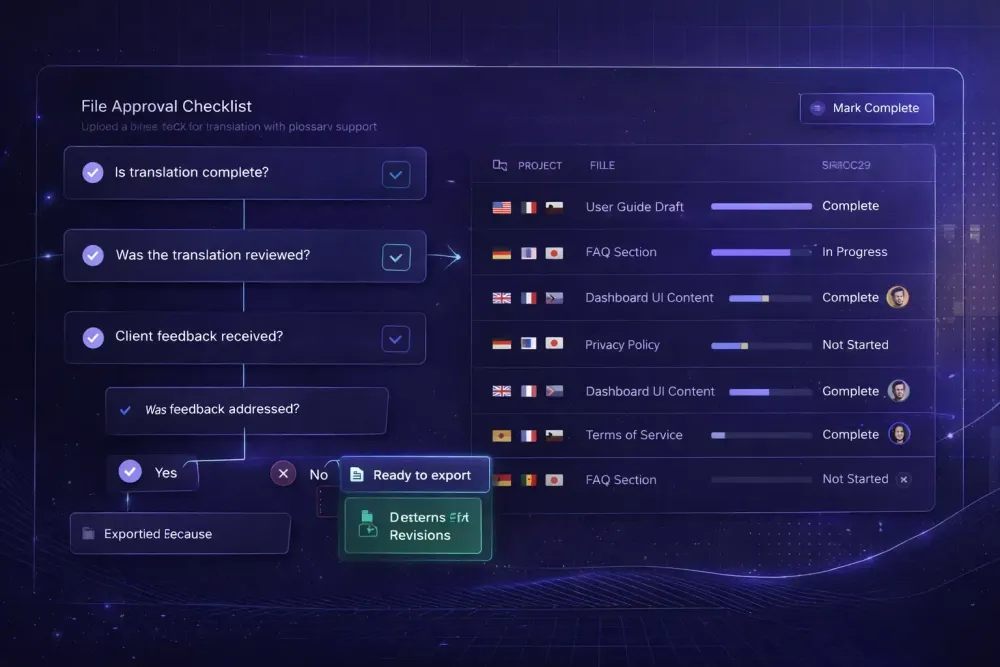
Most of the translators and agencies we talk to have the same experience with AI translation: paste text into a tool, get output, then spend significant time figuring out whether to trust it. No preparation step. No structured review before the job starts. No QA artifact at the end. Just raw output that may or may not reflect their glossary, their client's domain, or the context of the Smartcat project they've been working in for months. SnapIntel was built to fix that specific problem — and it starts from a format that Smartcat users already produce: the bilingual DOCX export.
Why the Smartcat bilingual DOCX matters
When translators and agencies work in Smartcat, their documents live in a structured bilingual format. The Smartcat bilingual DOCX export preserves source and target segments in a two-column structure with document metadata that identifies the language pair. This is different from exporting a translated file — the bilingual format retains the relationship between source and target segments, which is exactly what you need when running a structured AI translation workflow.
SnapIntel uses this format as its entry point. Rather than asking you to upload a raw source document and guess at the structure, the system reads the Smartcat bilingual DOCX directly. It detects the source and target languages from the document header, treats that as authoritative, and normalizes the file into a translation-ready internal format before any AI work begins.
This means no manual language selection, no guessing whether a segment has already been partially translated, and no loss of context between what Smartcat produced and what goes into the translation run. The import is tightly scoped to what the bilingual format actually contains.
This also sets a real boundary worth being clear about: SnapIntel's project creation workflow is built around Smartcat bilingual DOCX imports. It's not a generic document translator. If you work in Smartcat regularly and use bilingual exports as part of your process, the workflow fits naturally. If you need to translate arbitrary file types from scratch, that's a different tool category.
What happens during import and preparation
After you upload one or more Smartcat bilingual DOCX files to SnapIntel, the system validates the file structure before creating a project. If a file doesn't conform to the expected bilingual format, you find out at import rather than midway through a job — which matters on a deadline.
Once the import succeeds, you're in the preparation phase. This is where SnapIntel's approach differs most from a "click translate and hope" workflow.
There's an optional domain analysis step that examines the document content and returns a domain classification — useful context for understanding what kind of terminology the translation will involve. More concretely, you can generate a glossary from the document: a structured list of source terms and proposed target translations that you can review and edit directly before the job starts.
The same logic applies to the translation prompt. SnapIntel generates a prompt based on document context and glossary, and you can edit that prompt directly. The system won't start a translation run until you've explicitly saved an approved version of both the glossary and the prompt. That approval gate is deliberate. We've seen what happens when glossary and context are wrong from the start: the errors propagate through the entire output, and fixing them after the fact is significantly more work than getting the preparation right.
Running the translation job
Once glossary and prompt are approved, the translation job runs from within the project. You can see queued, running, and completed states as the job progresses. For batch workflows with multiple files, you get per-file visibility into which files are complete and which are still processing.
Progress is surfaced at multiple levels: percent complete, rows translated, and file-by-file status. If you need to cancel a job in progress, that option is available. If a file comes back failed or partial, it shows up clearly in the per-file results rather than silently missing from the output.
This visibility matters most on larger projects. A single-file job of 2,000 words is easy to track. A batch of 15 files across a multi-language project is where real-time status becomes operationally necessary — you need to know whether the job is running normally or whether something needs attention before the deadline.
What you get at the end
Completed jobs return downloadable translated DOCX files. The output format mirrors what clients expect to receive — a clean document, not a raw data dump. There's also a spreadsheet export option for situations where the translated content needs to go into a tabular format for review or downstream use.
Beyond the files themselves, SnapIntel includes QA reporting and a quality rating as part of the result. You're not just getting translated output — you're getting a signal about how confident the system is in the translation, and a QA report you can review before deciding whether the output needs human post-editing. An optional QA PDF is available for jobs where you need a documented quality artifact alongside the deliverable.
In our experience, this output layer is where agencies find the most immediate value. Not because the AI translation is always perfect — it isn't, and we wouldn't claim otherwise — but because having a quality rating and QA report gives you a structured basis for deciding how much human review to apply. That's a better starting point than raw output with no quality signal at all.
Plan tiers and how they affect the workflow
SnapIntel has three plan tiers: free, freelance, and agency. The free and freelance tiers use a platform-managed OpenAI key. The agency tier uses BYOK — bring your own key — meaning you connect your own OpenAI API key, which gives you control over the underlying model usage and costs.
Translation start can be affected by plan status or quota policy, and those states are visible in your account settings. We're deliberately not publishing specific quota numbers here since plan details can change — the current state is always in your account.
For agencies handling volume, the BYOK model is usually the relevant one: the agency's key is used for all translation runs, which makes it straightforward to track costs in your OpenAI billing dashboard alongside any other AI usage.
Where this fits in your Smartcat workflow
SnapIntel sits at a specific point in the translation process: after you've exported a bilingual DOCX from Smartcat, and before final delivery or downstream review. It doesn't replace Smartcat's CAT editor, its translation memory, or its marketplace. It runs as a workflow layer on top of the bilingual export.
The typical setup we see with agencies: work is assigned and managed in Smartcat, translators work in the CAT editor, and at a certain stage — often when a batch of segments needs AI translation before human review — a bilingual DOCX is exported and brought into SnapIntel. The translated output comes back as a clean DOCX that can go directly to delivery or back into Smartcat for post-editing.
Freelancers working solo sometimes use SnapIntel to run AI translation on Smartcat exports they'd otherwise handle manually, using the glossary and prompt preparation to get better first-pass output than a generic AI tool would produce. The preparation step is what makes the difference for domain-specific content — legal, medical, technical — where generic AI output tends to fall apart on terminology.
For more detail on how the product works, the SnapIntel docs cover the full workflow. And if you're new to the bilingual DOCX format and want to understand the export process from the Smartcat side, the step-by-step guide to exporting a bilingual DOCX from Smartcat is worth reading first.
Getting started
If you work in Smartcat and regularly export bilingual DOCX files, the SnapIntel workflow fits your existing process without requiring you to rebuild it. You can start a project at snapintel.io — the import, preparation, and job workflow are the same whether you're running a single file or a batch.
One practical suggestion: start with a document you know well. A file from a domain you've worked in before, with terminology you can evaluate. Run the glossary generation, review what the system proposes, edit what's wrong, run the job. The quality rating and QA report at the end will give you a sense of how much post-editing that document type requires. Once you've done that calibration on familiar content, you have a realistic baseline for how to use the tool on new projects.