How to export a bilingual DOCX from Smartcat: step-by-step guide
A practical guide to Smartcat bilingual DOCX export — what the format contains, how to prepare your project, common problems, and downstream workflow tips.
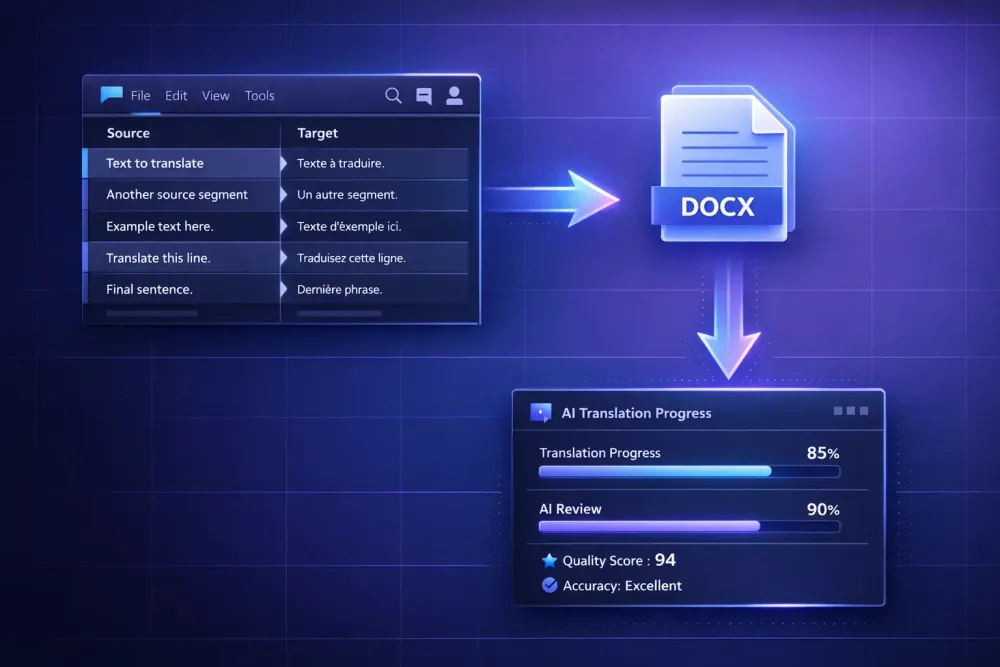
Exporting a bilingual DOCX from Smartcat is a step most Smartcat users do regularly, but the process has enough moving parts that it trips up new users — and even experienced ones who are used to earlier versions of the platform. We've seen agencies build entire downstream workflows around this file format, so it's worth going through not just the mechanics but the context: what a bilingual DOCX actually contains, when to use it, and what happens if you get the export settings wrong.
This walkthrough covers the Smartcat bilingual DOCX export workflow based on Smartcat's documented features. Exact menu paths and button labels can change between platform versions, so treat the steps here as a guide to the overall flow rather than a literal click-by-click script.
What a Smartcat bilingual DOCX actually is
A Smartcat bilingual DOCX is not the same as a regular translated document. It's a structured file that contains both source and target text in a side-by-side or segmented format, preserving the translation memory segments and metadata from the CAT editor session.
This matters because the bilingual DOCX is designed as an intermediate format — a way to move translation data out of Smartcat's CAT editor into another tool or workflow, while keeping the structural information intact. It's different from a "target only" export, which gives you a clean translated document with no source text.
The bilingual format is useful when you need to share the translated content with a reviewer who doesn't work inside Smartcat, when you want to run the translated output through a downstream AI translation workflow, or when you need to hand off a project to a different tool for post-processing.
One thing to be clear about: the bilingual DOCX is not a final delivery format for most clients. A client who asked for a translated version of their contract doesn't want to receive a bilingual file with source and target text both visible. For final delivery, export the target-only version with the correct formatting applied.
Setting up your project for a clean export
Before you export, the project state matters. A bilingual DOCX export reflects whatever is in the editor at export time — confirmed segments, unconfirmed drafts, empty segments, and any errors that are present.
In Smartcat, segments have confirmation states: not translated, draft, translated (pre-translated by AI or TM), and confirmed by translator or reviewer. What you include in the export depends on your workflow, but for most uses you want at least the "translated" state for all segments before exporting.
If you're running an AI pre-translation workflow, check the Translation Quality Score (TQS) before exporting. The TQS gives you an automated quality signal per segment — segments below threshold are typically flagged for human review. Exporting before reviewing low-TQS segments means those segments will be in the bilingual file in their unreviewed state, which may not be what you want if the file is going to a client reviewer or downstream processing tool.
For batch workflows — projects with multiple files — confirm whether you're exporting one file at a time or all files simultaneously. Smartcat supports both, and the workflow is slightly different for each. For large batches, check that all files are in the expected state before triggering the export.
The export process step by step
The general flow for exporting a bilingual DOCX from Smartcat:
Open your project and navigate to the document or file you want to export. In the project workflow view, there is an export or download option that lets you choose the export format.
Select the bilingual DOCX option. Smartcat offers several export formats — target-only, bilingual, XLIFF, and others. You want the bilingual DOCX specifically, not the target-only export.
Configure the export settings if available. Depending on your version of Smartcat, you may be able to choose which segment states to include and whether to include comments, notes, or metadata.
Trigger the export. For smaller files this is immediate; for large files or batch exports, Smartcat queues the job and you download the output when it's ready.
Check the exported file. Open it and verify that source and target segments are both present and formatted as expected. A malformed bilingual DOCX — one where segments are missing, duplicated, or in the wrong structure — will cause problems downstream.
The file structure of a Smartcat bilingual DOCX follows a consistent pattern that downstream tools expect. If you're feeding the file into another application for further processing, make sure that application supports the Smartcat bilingual format specifically, not just generic DOCX.
Common problems with bilingual DOCX exports and how to fix them
A few things that go wrong regularly:
Missing segments. If segments are in "not translated" state at export time, they may not appear in the bilingual file, or they'll appear as empty target cells. The fix is to ensure all segments have at least a draft translation before exporting, or to configure the export to include empty segments explicitly.
Formatting issues. Complex source documents — tables, multi-column layouts, text boxes — sometimes produce bilingual DOCX files with broken formatting. This is more a limitation of the underlying format than a configuration error. For complex documents, validate the bilingual export visually before handing it off.
Encoding problems. Certain language pairs — particularly those using right-to-left scripts or non-Latin alphabets — can occasionally produce encoding issues in bilingual exports. If you see garbled characters, check that the export and any downstream tools are both using UTF-8.
Large file handling. Very long documents can produce large bilingual DOCX files that some applications struggle to open. For 500-page documents, consider exporting in chunks by splitting the project into smaller files before translation.
What happens to the bilingual DOCX after export
For most workflows, the bilingual DOCX export is the beginning of a second phase — review, post-editing, QA, or downstream AI processing — rather than the end.
If the file goes to an external reviewer, give them context: explain that this is a bilingual format, which column or section is the translation, and what they're expected to do with it. Reviewers who aren't familiar with bilingual formats sometimes make edits in the source column or don't understand the segment structure.
If the file goes into an AI translation workflow, the downstream tool needs to correctly parse the Smartcat bilingual structure to separate source from target and apply translation logic correctly. Tools that work specifically with Smartcat bilingual DOCX files handle this automatically; generic DOCX processing tools may not.
One workflow we see agencies use: export the bilingual DOCX after Smartcat AI pre-translation, feed it into a dedicated tool for domain analysis, glossary application, and structured AI translation, then return the translated output for final QA before delivery. This keeps the Smartcat workflow for project management, TM, and CAT-based editing, while adding a more controlled AI translation layer on top.
SnapIntel is built specifically for this kind of workflow. It takes Smartcat bilingual DOCX files as the input format, runs domain analysis, glossary generation, and AI translation with an explicit approval gate before translation starts, and returns downloadable translated DOCX files with a quality rating and QA report. If you're already exporting bilingual DOCX files from Smartcat and looking for a structured way to run AI translation on them, it fits exactly that step in the workflow.
Best practices for bilingual DOCX export in production workflows
A few things that make a real difference:
Agree on the export state before the workflow starts. If your QA process happens after export and before delivery, make sure everyone on the team knows which segment state triggers the export. Exporting too early means reviewers work with drafts; exporting after full review means the bilingual file may already be at delivery quality.
Keep a naming convention for exported files. Bilingual DOCX files look like regular Word documents and can easily be confused with target-only exports or source files. Something like [project]_[lang-pair]_bilingual_[date].docx avoids confusion across a project archive.
Archive bilingual exports alongside final deliverables. The bilingual file contains the segment-level translation data from the CAT session, which is useful for audits, revision requests, or TM reconstruction if the database is ever lost.
Test downstream tools before committing to a workflow. If you're planning to feed bilingual DOCX exports into another tool — whether for AI translation, review, or QA — run a sample file through the full pipeline before you're on a deadline. The format compatibility issues are predictable, but only if you've seen them ahead of time.