How to translate Excel spreadsheets with AI using SnapIntel
A practical guide to translate Excel spreadsheets with AI: preserve formulas, maintain workbook structure, and deliver clean translated XLSX files.
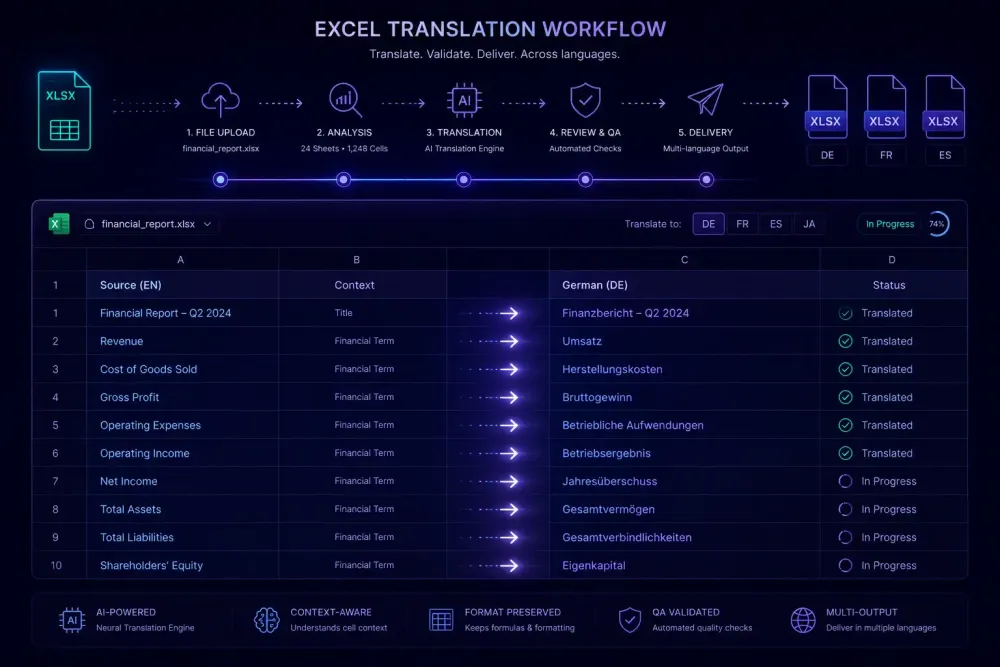
Excel spreadsheets are harder to translate than they look. A workbook with product descriptions or financial data seems manageable — until you run it through a generic translation tool and find broken formulas, garbled header rows, and a file the client cannot open without Excel throwing errors. We have seen this consistently with agencies that route XLSX files through workflows built for plain text, and it costs them real time every time.
Translating Excel files with AI has become practical in the last two years, but it only works when the workflow respects file structure. In this guide, we cover what makes XLSX translation different from DOCX, how to prepare your files, and what a properly structured AI workflow looks like from upload to delivery.
Why Excel files break during translation
Most translation tools treat an uploaded file as a bag of text. Extract strings, translate, reassemble. For DOCX, this usually produces something workable. For XLSX, it frequently does not.
Excel workbooks mix translatable and non-translatable content at the cell level. A single sheet might have product names and row labels sitting next to formula cells, date fields, hidden rows with metadata, and numeric values that should never change. A translation tool that processes all visible text without distinguishing these types will corrupt formulas containing string constants, translate labels that should stay numeric, and sometimes shift cell formatting in ways that break downstream calculations.
The correct behavior is to isolate visible plain-text cells and translate only those. Formula cells, numeric values, formatting metadata, hidden content — these must pass through unchanged and be written back into the workbook exactly as they were.
We see this go wrong most clearly with financial report templates. An agency sends an XLSX for a foreign client: English headers and row labels throughout, formula cells in the summary rows pulling from the data below. A generic tool translates everything visible. The client opens the file and every SUM() result returns an error because the formula references now contain translated string arguments. The translation itself was fine. The workflow was not.
Product catalogs hit this too. A sheet with 800 rows of product names and description columns looks clean — until the tool translates the formula-generated category labels in column A and the file's VLOOKUP stops working.
Knowing which cells to touch and which to leave alone is the starting point for any XLSX translation that delivers reliably.
What AI can and cannot do with Excel files today
When set up with proper cell-type handling, current AI translation handles structured XLSX content well. It translates visible plain-text cells with domain accuracy, preserves cell-level formatting, and returns a file that behaves correctly in Excel. For content-heavy workbooks — product catalogs, localized HR forms, configuration tables — output quality is typically high enough to require only light review before delivery.
What it does not handle is formula cells containing hard-coded text strings as part of their logic. If a formula reads =IF(A2="Active","Approved","Pending"), those strings are part of the formula's behavior, not translation targets. A workflow that cannot distinguish formula-embedded strings from regular cell text will break those cells silently.
Merged cells that span columns also require care. Translation changes string lengths. When a translated string is significantly longer or shorter than the source, merged cells can misalign. Files that use heavy cell-merging for visual layout — rather than for content structure — are the ones most likely to need manual formatting work after translation.
Images embedded in sheets are out of scope. Chart labels generated dynamically from data cells will translate when the data translates; static image labels will not.
The practical boundary: AI handles structured text content accurately. It does not handle content that lives inside formula logic or that requires structural interpretation to locate. Knowing this before you run a file prevents surprises at review.
Preparing an Excel file before you translate
Preparation is what separates a clean delivery from a file that takes hours to fix. Most teams skip it, and it shows.
Before running any XLSX through an AI translation workflow, audit the file structure first. Open the workbook and identify which sheets contain translatable content. A typical workbook has a data sheet, a summary dashboard with charts, and lookup reference sheets. The dashboard and lookup sheets often contain no translatable plain-text cells at all — including them in the translation scope adds risk without any benefit.
Build a glossary for the domain. This is probably the most effective single step you can take before the job runs. A pharmaceutical product catalog has equipment names and regulatory designations that should not be translated. A legal document registry has clause labels that need to map to approved equivalents in the target language. A short glossary of 15 to 30 terms — product names to protect, technical labels to translate consistently — substantially reduces post-editing time and cuts terminology errors in the output.
For technical or specialized files, running a domain analysis before glossary generation helps. Knowing whether the content is medical, legal, or financial changes which terms to protect and how to frame the translation prompt.
Also confirm the source is clean. Files that have gone through multiple rounds of review are often partially translated, have mixed-language labels, or contain cells where someone left a comment in a different language. Running an AI translation on mixed-language content produces inconsistent output. Check this before you start.
These steps take roughly fifteen minutes for a typical workbook. Skipping them reliably costs more time in post-delivery corrections.
How to translate Excel spreadsheets with AI using SnapIntel
SnapIntel is a web-based product for translating DOCX documents and XLSX workbooks with AI. For Excel files, it imports the workbook, normalizes visible plain-text cells into a translation-ready bilingual structure, runs the translation job against a glossary and prompt you have reviewed, and returns a translated workbook alongside a neutral XLSX export and a QA report.
The workflow runs in five steps. You upload the XLSX file and select source and target language manually. SnapIntel validates the file on import and builds the internal bilingual structure from the translatable cells — formula cells, numeric values, formatting metadata, and hidden rows are preserved in an assembly manifest and written back unchanged after translation completes.
From there, you run domain analysis — optional, but worth doing for specialized content. This step classifies the document domain and feeds that classification into the glossary suggestions. For technical workbooks, we find it produces noticeably better terminology coverage than going straight to glossary generation.
You then generate and review a glossary. SnapIntel generates suggestions from the file content and domain context, and you can edit directly before saving. Translation will not start until you have explicitly approved the glossary. This is intentional — the approval gate forces a terminology check before the job runs, not after you have already received the output.
After glossary approval, SnapIntel generates a translation prompt based on the domain, glossary, and language pair. You review and approve that too. Once both are confirmed, the translation job starts.
When the job completes, you download the translated XLSX workbook (original filename with the target locale appended), a neutral source/target XLSX export for importing into any CAT tool as a TM resource, and a QA report with quality ratings. The delivered workbook preserves the original structure for supported file content.
SnapIntel's free plan covers 2,000 words per month with a 2,000-word document limit — enough for smaller client deliverables or samples. The Pro plan offers 40,000 words per month for ongoing production work. The Agency plan uses BYOK behavior: you supply your own OpenAI API key, and there are no word limits. See SnapIntel's docs for a full walkthrough of the project workflow.
Reading the QA report and neutral XLSX export
The QA report that comes back with the translated file gives you review signals you cannot get from reading the output manually. For Excel translation specifically, it surfaces terminology mismatches against the approved glossary, segments where translation length differs significantly from the source (which can indicate a dropped phrase or an expansion that may affect how the cell displays), and per-segment quality ratings.
For structured spreadsheet content — labeled data fields, table headers, product description rows — the quality rating is a reliable signal. High-rated segments typically do not need review. Lower-rated segments are worth a closer look before delivery, particularly in cells where precision matters: regulatory labels, unit designations, legal clause titles.
The neutral XLSX export is a separate deliverable worth noting. It contains source and target content in a standard bilingual format you can import into Trados, memoQ, Phrase, or any other CAT tool that accepts XLSX-format TM resources. If your team works in a CAT tool and you are using SnapIntel for the AI translation step, this file connects the two workflows without manual reformatting.
For batch projects — multiple XLSX files in a single job — SnapIntel shows per-file status and downloadable artifacts for each file as they complete. You are not waiting for the whole batch to finish before you can start reviewing the first file.
When AI Excel translation works well and when it doesn't
This approach works well when the translatable content is clearly separated from formula and calculation logic. Product catalogs, HR survey forms, financial report templates with labeled rows, configuration tables — these tend to have consistent content types in identifiable columns, a defined domain, and low ambiguity about what needs translation.
It works less well with files designed as calculation engines. A financial model with complex formula chains, named ranges, and external data references is primarily a program. Translating the label cells is possible, but the risk of unintended side effects is higher than in a document-style workbook, and the workflow needs reliable cell-type discrimination to do it safely.
Files with heavy merged cells for visual layout require auditing before you start. Merged cells create ambiguity in cell mapping. If the translated string is much longer or shorter than the source, the visual layout can shift in ways that require manual correction afterward.
This also doesn't apply if your workbook is primarily a dashboard rather than a document. Charts, pivot tables, and dynamically referenced ranges are not translation targets in the traditional sense. If the underlying data cells translate, chart labels that pull from those cells will reflect the new language. If they don't — for example, static text embedded in chart titles — they won't. Knowing the difference before you start saves time explaining it to clients after.
The practical test: if you can open the file and point to specific columns or rows and say "these contain plain text and need translation," AI translation is a good option. If identifying the translatable content requires interpreting the file structure, do the structural audit first.
Practical takeaway
AI Excel translation is reliable when the workflow treats XLSX as a structured document rather than a text container. Broken formulas, corrupted values, misaligned merged cells — these failure modes almost always trace back to a tool that ignored workbook structure.
Before running any XLSX through an AI translation workflow, spend fifteen minutes with the file: identify which sheets and columns contain translatable content, build a short domain glossary, and confirm the source is clean. That investment is consistently smaller than fixing a delivered file where every summary row returns an error.
If you work with XLSX files and want a translation workflow with glossary control, an approval gate before translation starts, and QA output included, SnapIntel offers direct XLSX project creation with those steps built in. The free plan is available without a credit card.